 Fuze
FuzeFuze documentationDocumentación de Fuze
Everything you need to set up Fuze, learn its tools and plug it into a studio pipeline. Pick a topic below or use the menu.Todo lo necesario para configurar Fuze, aprender sus herramientas e integrarlo en un pipeline de estudio. Elige un tema o usa el menú.
Getting startedPrimeros pasos
Install Fuze, add your keys and make your first project.Instala Fuze, añade tus claves y crea tu primer proyecto.
Start hereEmpieza aquíGuidesGuías
Manager, Flow, Strip, Editorial, assets and costs.Manager, Flow, Strip, Editorial, assets y costes.
Learn the toolsAprende las herramientasStudio pipeline modeModo estudio (pipeline)
Launch Fuze from your studio launcher with folders, users and keys already set.Lanza Fuze desde el lanzador del estudio con carpetas, usuarios y claves ya configurados.
For pipeline TDsPara TDs de pipelineGetting startedPrimeros pasos DraftBorrador
This page is a first outline. Each step below will get its own short walkthrough.Esta página es un primer esquema. Cada paso de abajo tendrá su propio tutorial breve.
- Install and open Fuze.Instala y abre Fuze. Download the installer for your system and run it. The first launch asks you to accept the terms.Descarga el instalador de tu sistema y ejecútalo. En el primer arranque se te pedirá aceptar las condiciones.
- Activate your license.Activa tu licencia. Enter your license code in Settings > License. Free, Indie and Studio licenses unlock different features.Introduce tu código de licencia en Settings > License. Las licencias Free, Indie y Studio desbloquean funciones distintas.
- Add your generation keys.Añade tus claves de generación. Open Settings > Generation APIs and paste the keys of the services you use.Abre Settings > Generation APIs y pega las claves de los servicios que uses.
- Create or open a project.Crea o abre un proyecto. A project is a folder on disk. Use the project panel to create a new one or to point Fuze at an existing folder.Un proyecto es una carpeta en disco. Usa el panel de proyectos para crear uno nuevo o para indicar una carpeta existente.
- Generate and organize.Genera y organiza. Everything you generate is saved in the project, where you can sort it, review it and reuse it.Todo lo que generes se guarda en el proyecto, donde puedes ordenarlo, revisarlo y reutilizarlo.
Your pipeline team can launch Fuze with the project, user and keys already set. See Studio pipeline mode.El equipo de pipeline puede lanzar Fuze con el proyecto, el usuario y las claves ya configurados. Mira el modo estudio.
Updating FuzeActualizar Fuze
Fuze tells you when a new version is available. Look for the green icon at the bottom left of the window and update in a couple of clicks.Fuze te avisa cuando hay una versión nueva. Busca el icono verde en la esquina inferior izquierda de la ventana y actualiza en un par de clics.

- Look for the green icon. When a new version is available, a green update icon appears at the bottom left of Fuze, under the side toolbar (circled in the image).Busca el icono verde. Cuando hay una versión nueva, aparece un icono verde de actualización en la esquina inferior izquierda de Fuze, bajo la barra lateral (rodeado en la imagen).
- Click it. A window shows the new version number and what has changed in it.Púlsalo. Se abre una ventana con el número de la versión nueva y lo que ha cambiado.
- Download and install. Click Download & Install. Fuze downloads the update and installs it.Descarga e instala. Pulsa Download & Install. Fuze descarga la actualización y la instala.
- Save your work first. Fuze closes to complete the update, so save your workflows before you click.Guarda tu trabajo antes. Fuze se cierra para completar la actualización, así que guarda tus workflows antes de pulsar.
- Not now? Click Cancel and update another time.¿Ahora no? Pulsa Cancel y actualiza en otro momento.
Manager
The Manager is the home of your project: a folder tree on the left and a gallery with everything you generate or import.El Manager es la base de tu proyecto: un árbol de carpetas a la izquierda y una galería con todo lo que generas o importas.
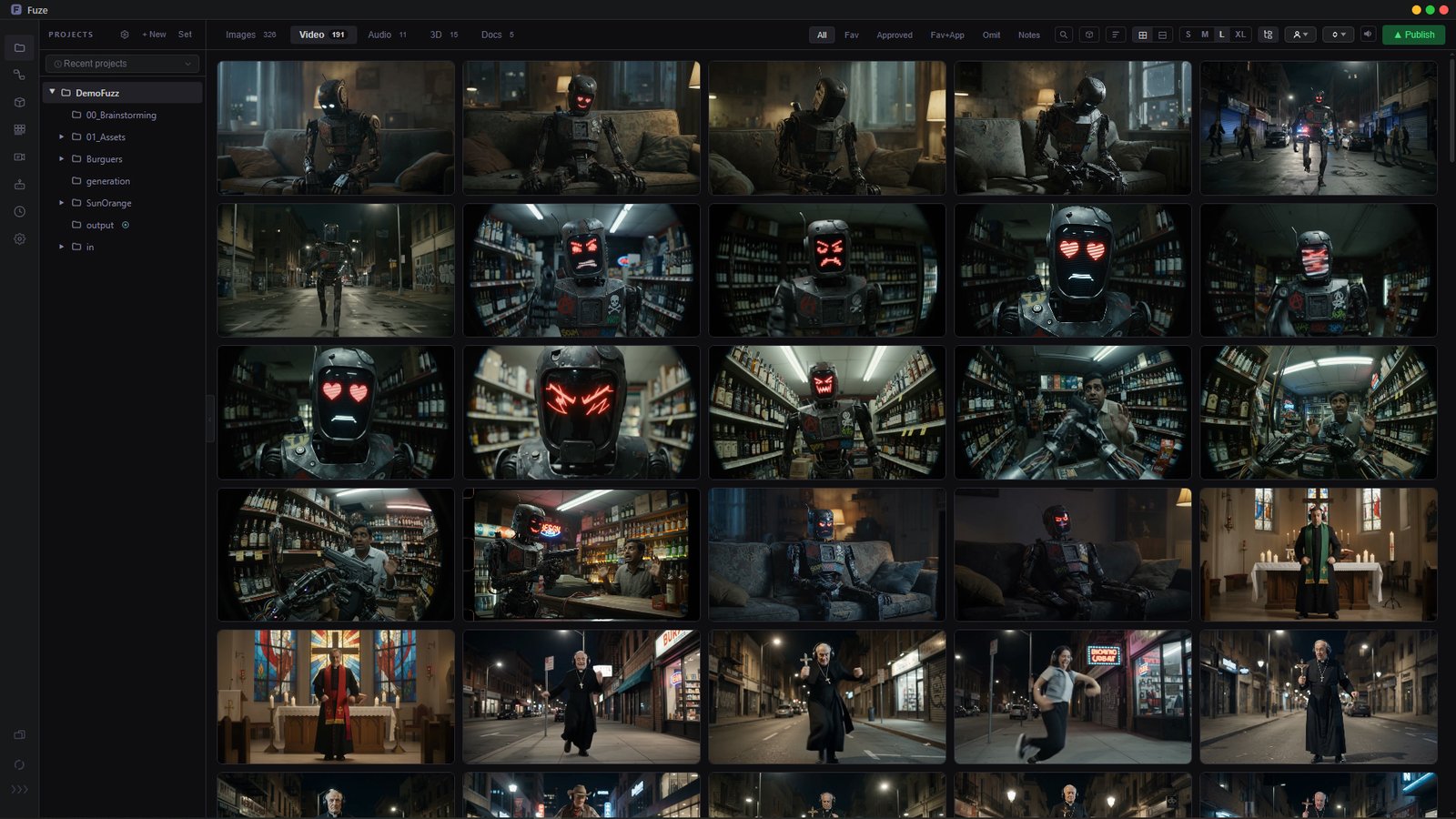
- Browse by type. Tabs for Images, Video, Audio, 3D and Docs.
Ctrl+click combines Images and Video.Navega por tipo. Pestañas de Imágenes, Vídeo, Audio, 3D y Docs.Ctrl+clic combina Imágenes y Vídeo. - Review. Mark each file as approved, favorite or omitted, add notes, and filter by any of them. Search, sort, resize the grid or include subfolders.Revisa. Marca cada archivo como aprobado, favorito u omitido, añade notas y filtra por cualquiera de ellos. Busca, ordena, cambia el tamaño de la rejilla o incluye subcarpetas.
- Organize. Select many files (
Ctrl/Shiftclick or rubber band), drag them between folders (Altto copy) or drop files from your computer to import them.Organiza. Selecciona varios archivos (Ctrl/Shiftclic o recuadro), arrástralos entre carpetas (Altpara copiar) o suelta archivos desde tu ordenador para importarlos. - Work on a file. Open it in the lightbox, annotate it, edit images (upscale, outpaint), trim audio, view 3D models, compare two images, rename it or register it as an asset.Trabaja un archivo. Ábrelo en el visor, anótalo, edita imágenes (upscale, outpaint), recorta audio, mira modelos 3D, compara dos imágenes, renómbralo o regístralo como asset.
- Send it on. Drag files into Flow, Strip or Editorial, or hold
Shiftwhile dragging to take them out to other apps. The gallery refreshes by itself when files change on disk.Llévalo a otro sitio. Arrastra archivos a Flow, Strip o Editorial, o manténShiftmientras arrastras para sacarlos a otras apps. La galería se actualiza sola cuando cambian los archivos en disco.
Flow
Build node-based workflows to chain generations, references and tools, then save and reuse them.Crea workflows basados en nodos para encadenar generaciones, referencias y herramientas, y guárdalos para reutilizarlos.
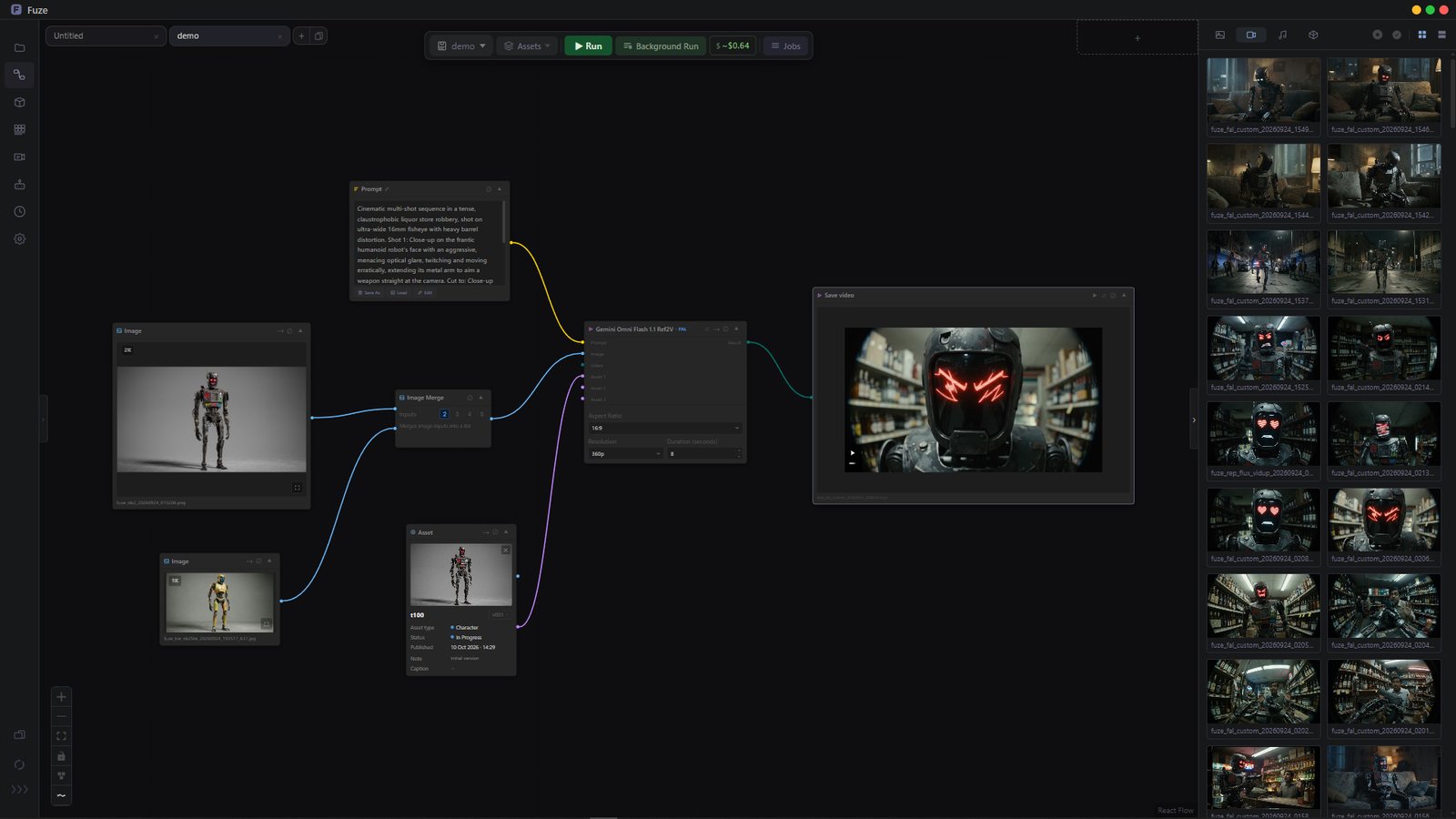
- Add nodes. Right-click or press
Tabon the canvas. Dragging from a connector opens a list filtered to nodes that can plug in. An empty canvas offers a prompt box and ready-made templates to start.Añade nodos. Clic derecho oTaben el lienzo. Al arrastrar desde un conector se abre una lista filtrada con los nodos compatibles. Un lienzo vacío ofrece una caja de prompt y plantillas para empezar. - Connect. Connections are typed (image, video, text...). Dropping an output onto another output of the same type creates a Merge node, and dropping a node over a connection inserts it in the middle.Conecta. Las conexiones son tipadas (imagen, vídeo, texto...). Soltar una salida sobre otra salida del mismo tipo crea un nodo Merge, y soltar un nodo sobre una conexión lo inserta en medio.
- Generate. Fal, Kie, Replicate, Google and Cloudflare models appear once their key is set in Settings > Generation APIs. Run the whole flow (
Ctrl+Enter) or only from one node. Independent branches run in parallel and a jobs panel shows the queue.Genera. Los modelos de Fal, Kie, Replicate, Google y Cloudflare aparecen cuando su clave está en Settings > Generation APIs. Ejecuta todo el flow (Ctrl+Enter) o solo desde un nodo. Las ramas independientes se ejecutan en paralelo y un panel de trabajos muestra la cola. - Keep control of cost. A cost badge estimates each run and can suggest a cheaper provider for the same model.Controla el coste. Un indicador estima cada ejecución y puede sugerir un proveedor más barato para el mismo modelo.
- Reuse. Save and open flows in tabs (
Ctrl+S,Ctrl+O), start from Templates, add your own Custom Nodes and load assets from the registry. Drag images in from the Manager or your computer, and drop a PNG withAltto load the workflow stored inside it.Reutiliza. Guarda y abre flows en pestañas (Ctrl+S,Ctrl+O), empieza desde Plantillas, añade tus Custom Nodes y carga assets del registro. Arrastra imágenes desde el Manager o tu ordenador, y suelta un PNG conAltpara cargar el workflow que lleva dentro. - Run ComfyUI workflows. The ComfyUI node runs a workflow exported with Export (API) on the ComfyUI of your own computer, with an image input per Load Image node and a text input per prompt. It reads a Save Image or Save Video node, so the output is an image or a video. To keep a few settings in sight instead of inside the Settings list, start the title of that node in ComfyUI with
[Fuze](for example[Fuze] Duration), export the workflow again and choose it in the node: those settings appear at the top. You can also pin or unpin any setting with the pin icon next to it. Requires Indie or Studio.Ejecuta workflows de ComfyUI. El nodo ComfyUI ejecuta un workflow exportado con Export (API) en el ComfyUI de tu propio ordenador, con una entrada de imagen por cada nodo Load Image y una entrada de texto por cada prompt. Lee un nodo Save Image o Save Video, así que la salida es una imagen o un vídeo. Para tener a la vista unos pocos ajustes en lugar de dentro de la lista Settings, empieza el título de ese nodo en ComfyUI con[Fuze](por ejemplo[Fuze] Duration), exporta de nuevo el workflow y elígelo en el nodo: esos ajustes aparecen arriba. También puedes fijar o soltar cualquier ajuste con el icono de chincheta que tiene al lado. Requiere Indie o Studio.
Strip Indie and StudioIndie y Studio
Lay out shots in a strip, review them in order and export a PDF.Organiza planos en un strip, revísalos en orden y exporta un PDF.
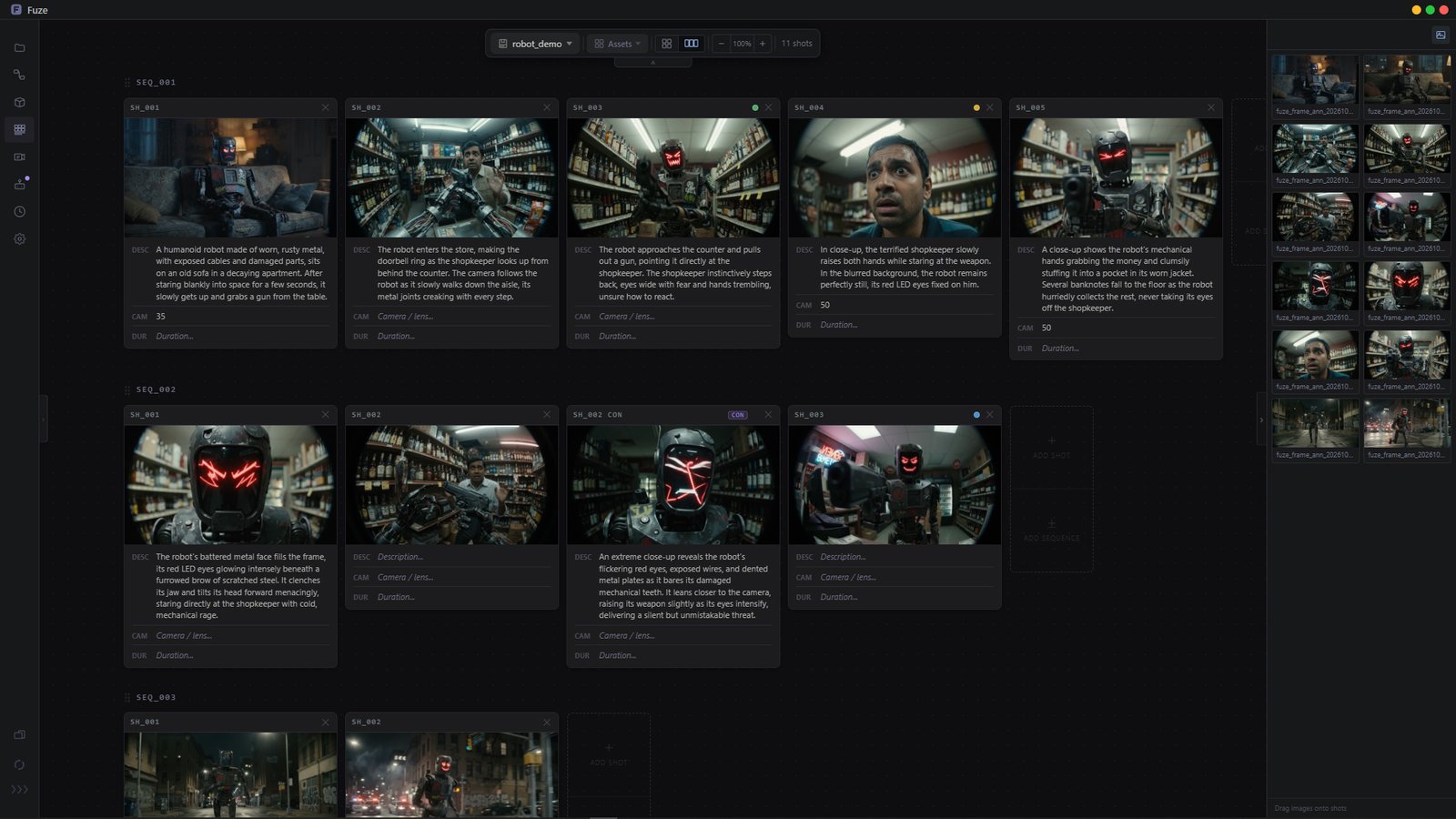
- Sequences and shots. Each shot has an image, a description, a camera note and a duration. Labels (
SH_001...) are numbered for you, and you can add continuity shots and color-code shots or sequences.Secuencias y planos. Cada plano tiene imagen, descripción, nota de cámara y duración. Las etiquetas (SH_001...) se numeran solas, y puedes añadir planos de continuidad y poner colores a planos o secuencias. - Fill it fast. Drag images in from the gallery panel and reorder shots by dragging.Rellénalo rápido. Arrastra imágenes desde el panel de galería y reordena los planos arrastrándolos.
- Two views. Switch between Grid and Strip, zoom with the wheel and pan with the middle mouse button or
Alt+drag.Dos vistas. Cambia entre Grid y Strip, haz zoom con la rueda y desplázate con el botón central oAlt+arrastrar. - Export and publish. The File menu saves your strip and exports a PDF (portrait or landscape). The Assets menu publishes each shot as its own asset, and shows what is new, updated or unchanged first. Publishing the whole strip is a Studio feature.Exporta y publica. El menú File guarda el strip y exporta un PDF (vertical u horizontal). El menú Assets publica cada plano como asset propio y antes muestra qué es nuevo, qué se actualiza y qué no cambia. Publicar el strip completo es una función de Studio.
Editorial
Assemble clips on a timeline, save named edits and export to video or FCPXML.Monta clips en una línea de tiempo, guarda edits con nombre y exporta a vídeo o FCPXML.
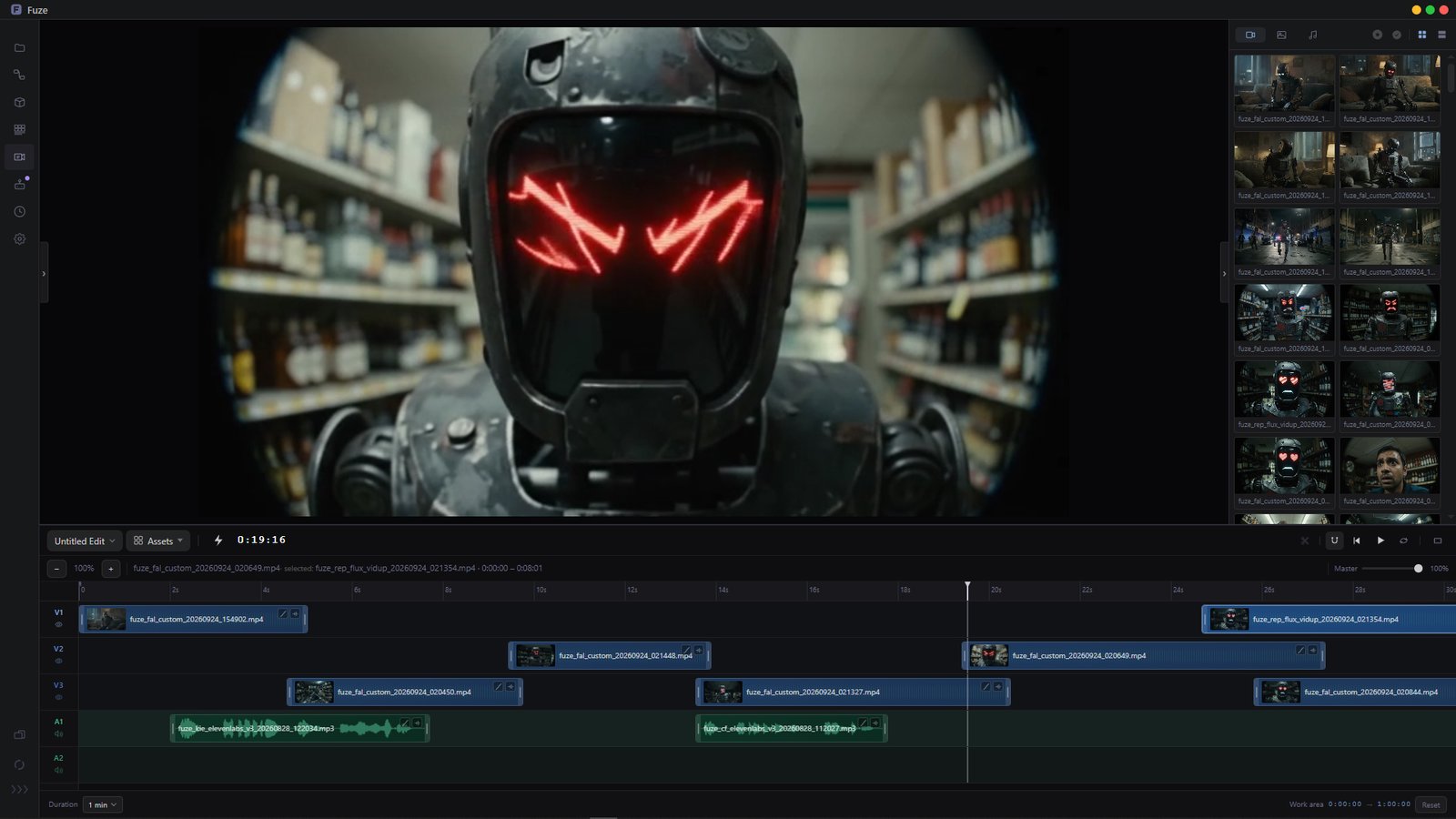
- Timeline. Three video tracks and audio tracks. Drag video, images and audio in from the gallery panel, then move, trim, split (
S) and snap clips. Undo and redo are always there.Línea de tiempo. Tres pistas de vídeo y pistas de audio. Arrastra vídeo, imágenes y audio desde el panel de galería, y mueve, recorta, divide (S) y ajusta clips con imán. Deshacer y rehacer siempre disponibles. - Preview. Set a work area with
IandO, loop it, and check framing with aspect guides (16:9, 4:3, 1:1, 2.39:1, 9:16). A preview cache keeps playback smooth and a draft is autosaved.Previsualización. Define una zona de trabajo conIyO, ponla en bucle y revisa el encuadre con guías de formato (16:9, 4:3, 1:1, 2.39:1, 9:16). Una caché de previsualización mantiene la reproducción fluida y se guarda un borrador automáticamente. - Sound. Master and per-clip volume, plus fades.Sonido. Volumen general y por clip, más fundidos.
- Export. From the File menu: a movie in MP4 or MOV (choose frame rate, resolution, codec and quality), or an FCPXML to continue in your NLE (not in Free). Publishing the edit as an asset is a Studio feature.Exporta. Desde el menú File: una película en MP4 o MOV (elige fps, resolución, códec y calidad), o un FCPXML para seguir en tu editor (no disponible en Free). Publicar el edit como asset es una función de Studio.
Assets and costsAssets y costes
Register assets with versions, follow their status and keep track of what each generation costs.Registra assets con versiones, sigue su estado y controla lo que cuesta cada generación.
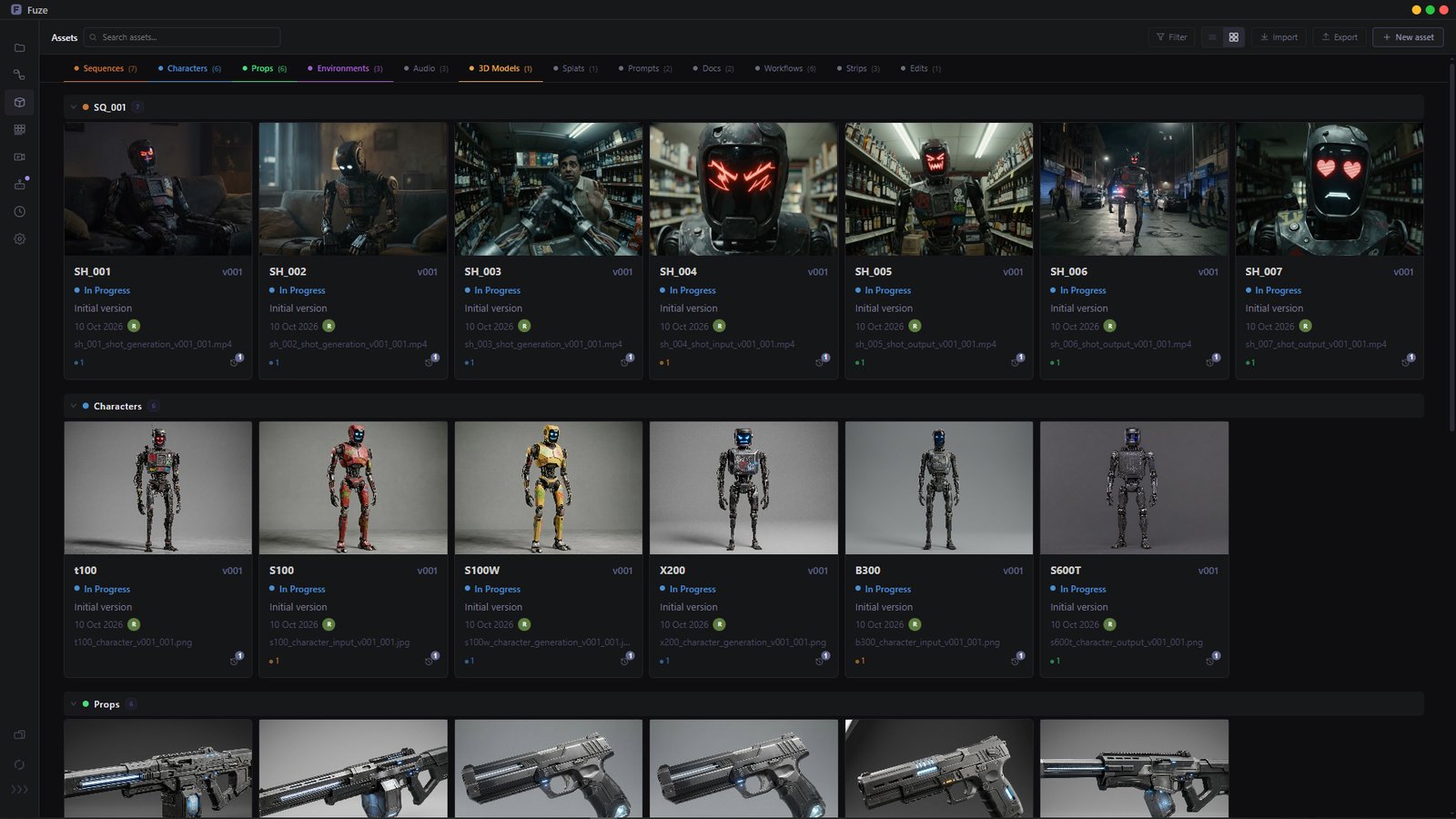
- A registry for your production. Props, characters, shots and more, organized in tabs by type, in list or grid view. Search, filter by status or by pending notes, and look at related assets.Un registro para tu producción. Props, personajes, planos y más, organizados en pestañas por tipo, en vista de lista o de rejilla. Busca, filtra por estado o por notas pendientes y mira los assets relacionados.
- Your own types. When you register an asset, + Add type creates a type of your own (for example
comfy). It accepts any kind of file, gets its own tab in the Assets page and can be loaded in Flow from the Asset Loader like any other asset.Tus propios tipos. Al registrar un asset, + Add type crea un tipo propio (por ejemplocomfy). Acepta cualquier tipo de fichero, tiene su propia pestaña en la página de Assets y se puede cargar en Flow desde el Asset Loader como cualquier otro asset. - Versions and status. Expand any row to see its versions, change its status, read notes and check the history. Stages and statuses can be customized per project.Versiones y estado. Despliega cualquier fila para ver sus versiones, cambiar su estado, leer notas y consultar el historial. Las fases y los estados se pueden personalizar por proyecto.
- Share. Export assets as a
.fuzebundle and import them in another project (not in Free). Import creates copies and warns if a name already exists.Comparte. Exporta assets como paquete.fuzee impórtalos en otro proyecto (no disponible en Free). La importación crea copias y avisa si un nombre ya existe.
CostsCostes
Every generation is recorded in a per-project ledger, so you always know what a project has cost.Cada generación se anota en un registro por proyecto, así sabes siempre cuánto ha costado.
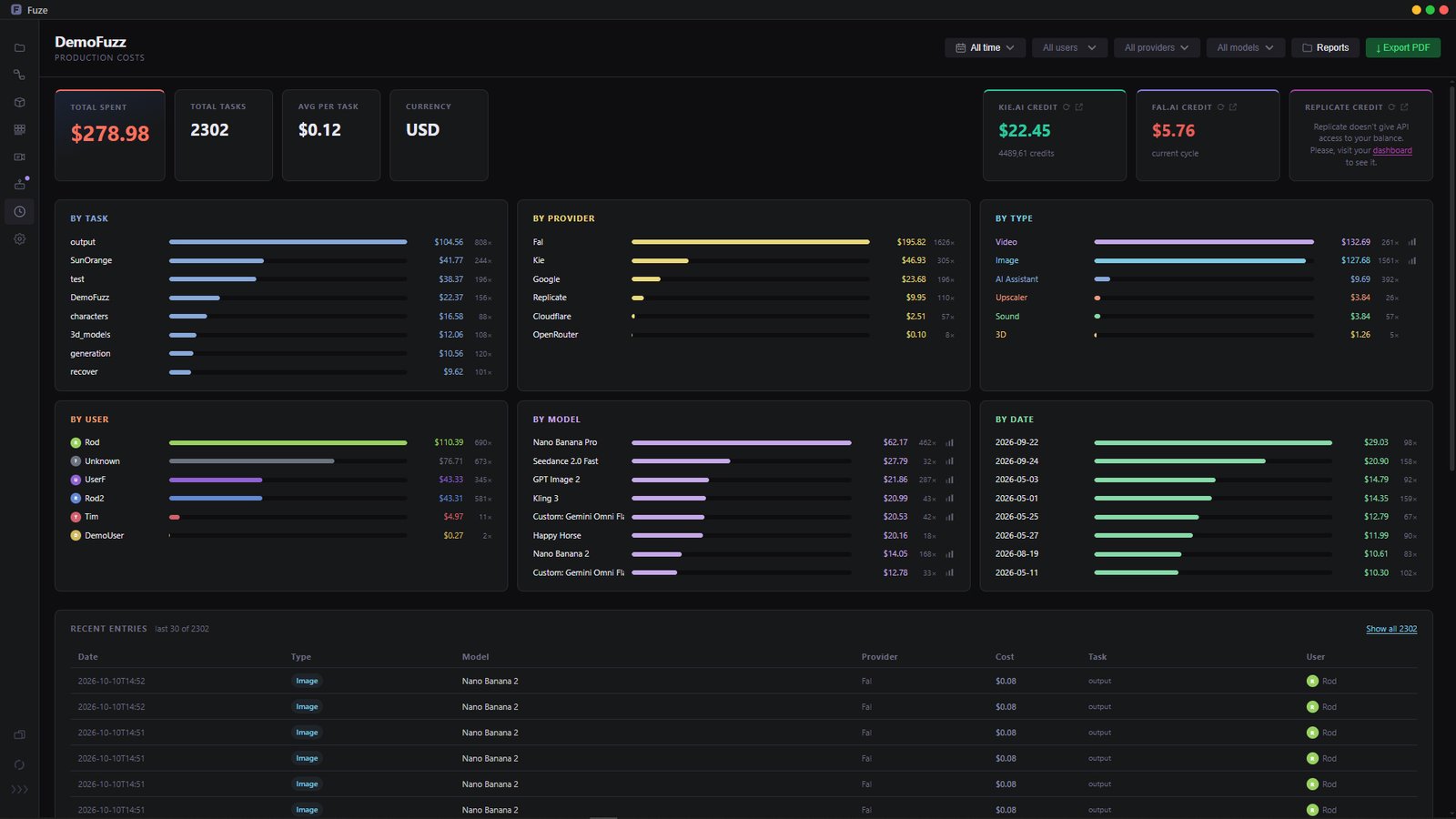
- Totals and provider credits. Indie shows the project total and the credit left with your providers.Totales y créditos. Indie muestra el total del proyecto y el crédito que te queda en tus proveedores.
- Studio breakdown. Filter by date, user, provider or model, click any breakdown (task, provider, type, user, model, date) to dig in, and export a PDF report. Balances are shown for Kie.ai, Fal.ai and Cloudflare, while Replicate does not offer a balance.Desglose en Studio. Filtra por fecha, usuario, proveedor o modelo, haz clic en cualquier desglose (tarea, proveedor, tipo, usuario, modelo, fecha) para profundizar y exporta un informe en PDF. Se muestran saldos de Kie.ai, Fal.ai y Cloudflare; Replicate no ofrece saldo.
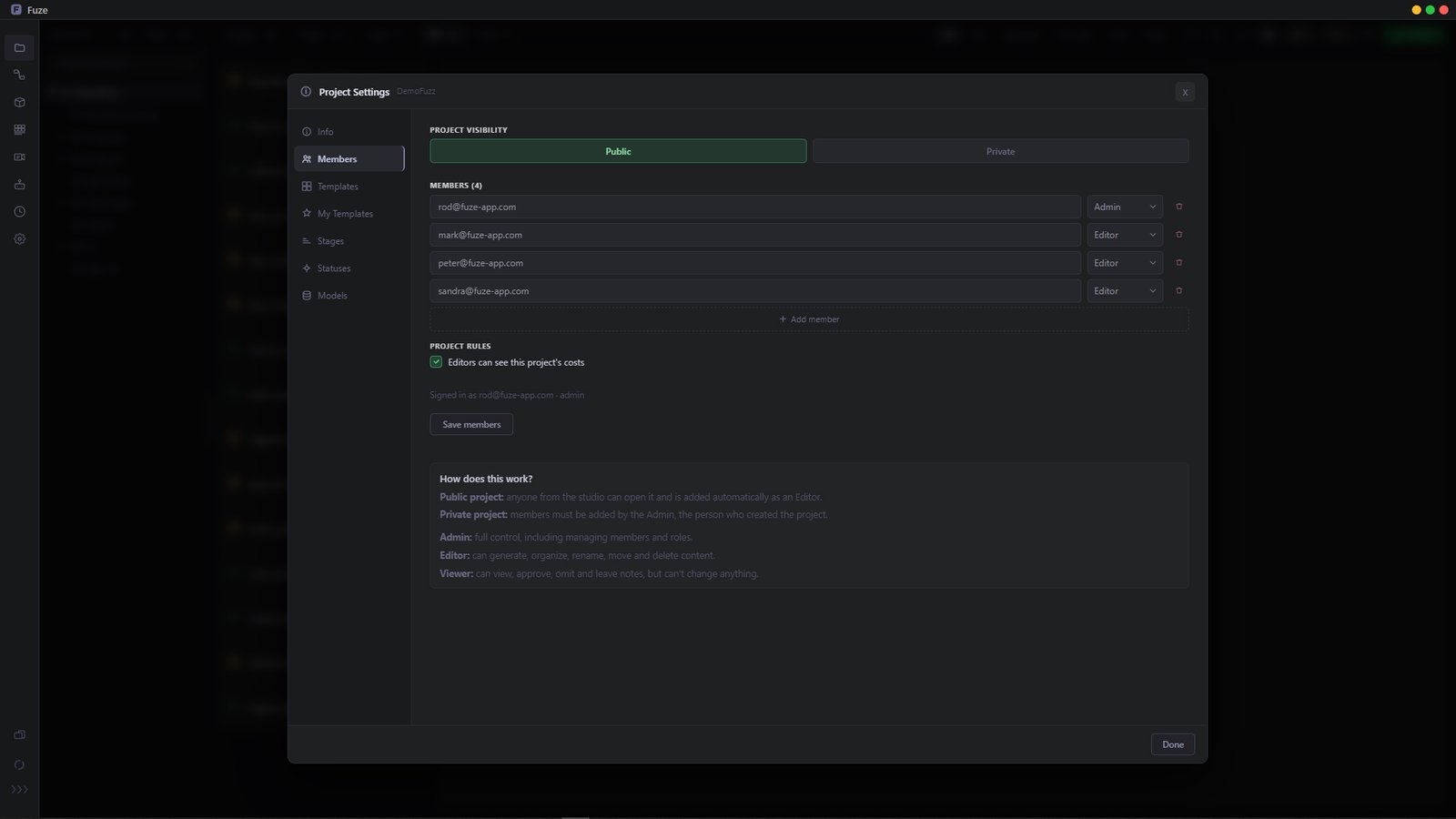
- Who can see it. In Studio, an admin can hide costs from editors in the project settings.Quién lo ve. En Studio, un admin puede ocultar los costes a los editores en los ajustes del proyecto.
Project settingsAjustes del proyecto
Describe the project, choose who works on it and decide which tools and models it uses.Describe el proyecto, elige quién trabaja en él y decide qué herramientas y modelos usa.
- Info. Client, agency, director, producer, supervisor, output format, frame rate, delivery date and notes.Info. Cliente, agencia, director, productor, supervisor, formato de salida, fps, fecha de entrega y notas.
- Templates. Start from a folder template (Commercial, Design, Animation, Narrative). Studio can also save its own templates, stages and statuses.Plantillas. Empieza desde una plantilla de carpetas (Commercial, Design, Animation, Narrative). Studio también puede guardar sus propias plantillas, fases y estados.
- Members. Make the project public or private and add people by email as Admin, Editor or Viewer (Studio).Miembros. Haz el proyecto público o privado y añade personas por email como Admin, Editor o Viewer (Studio).
- Models. Turn generation models on or off per provider, and manage Custom Nodes (Studio, admins only).Modelos. Activa o desactiva modelos de generación por proveedor y gestiona los Custom Nodes (Studio, solo admins).
AssistantAsistente Indie and StudioIndie y Studio
A chat built into Fuze that writes prompts, builds workflows and answers questions about your project.Un chat integrado en Fuze que escribe prompts, monta workflows y responde preguntas sobre tu proyecto.
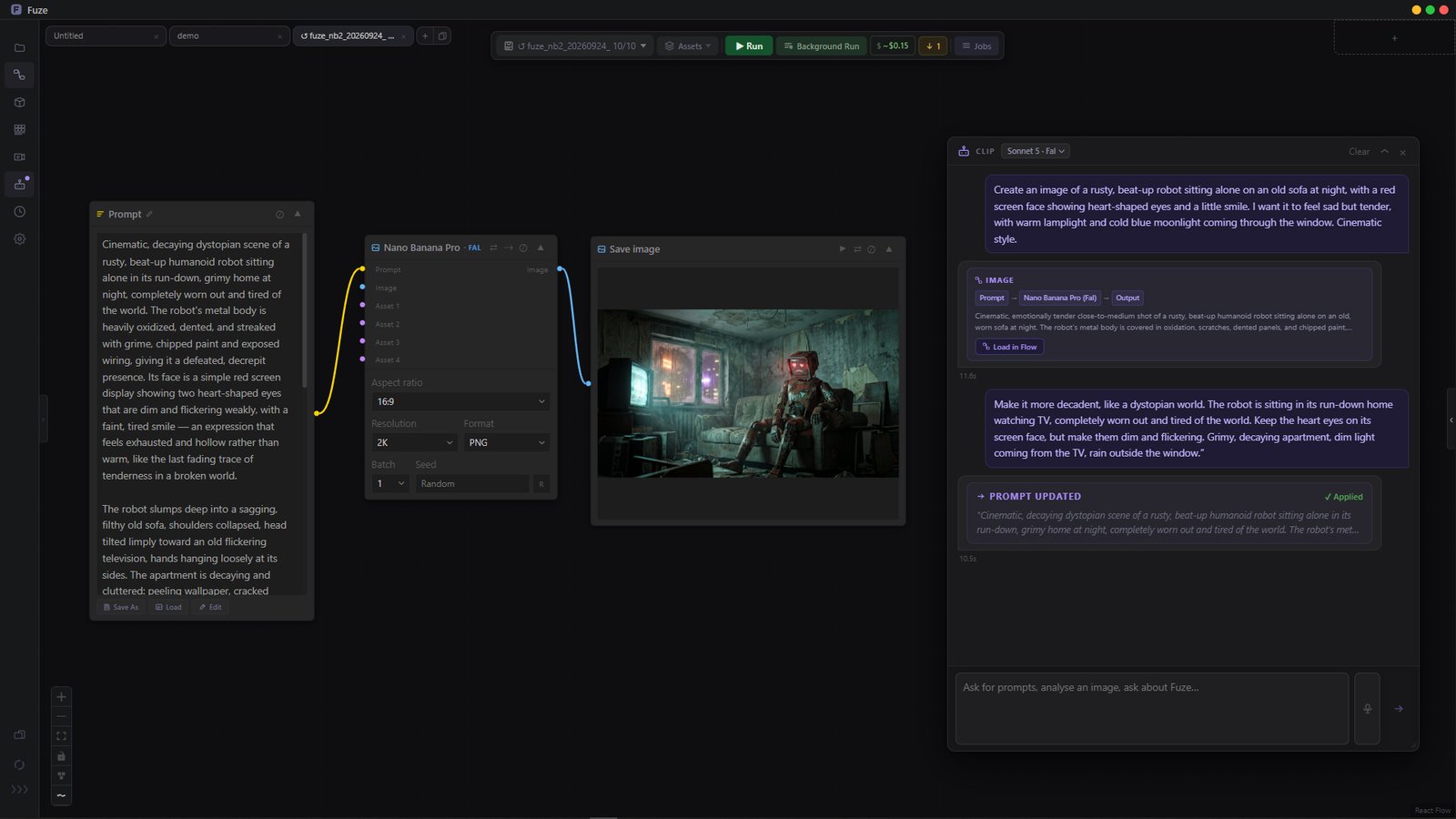
- Always at hand. A floating window you can move, resize or shrink. Drop images, PDFs or documents on it, or talk to it by holding
Por using the microphone.Siempre a mano. Una ventana flotante que puedes mover, redimensionar o reducir. Suelta imágenes, PDFs o documentos encima, o háblale manteniendoPo con el micrófono. - It acts on Flow. It proposes prompts you can add to the canvas, loads workflows from templates, and can update prompts, change model or run.Actúa sobre Flow. Propone prompts que puedes añadir al lienzo, carga workflows desde plantillas y puede actualizar prompts, cambiar de modelo o ejecutar.
- It knows your project. It sees the canvas and your assets (mention one with
@AssetName), and can write documents that are saved in the project or exported to PDF.Conoce tu proyecto. Ve el lienzo y tus assets (menciona uno con@NombreDelAsset), y puede redactar documentos que se guardan en el proyecto o se exportan a PDF.
Advanced optionsOpciones avanzadas
Work across several windows and move files in and out of Fuze.Trabaja con varias ventanas y mueve archivos dentro y fuera de Fuze.
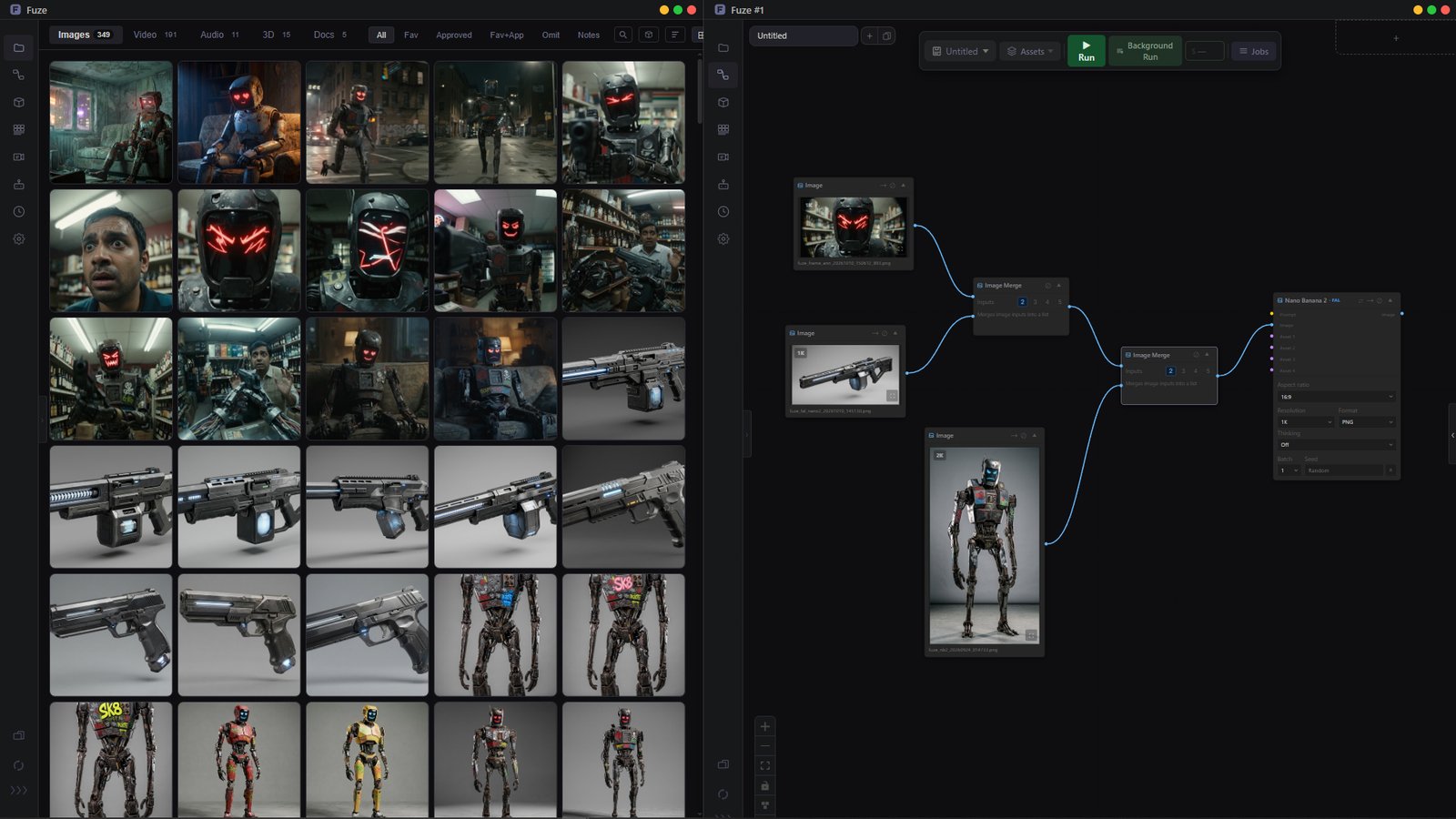
- Linked windows. Open another Fuze window with
Ctrl+Shift+Nand keep both in sync, for example the Manager on one monitor and Flow on the other.Ventanas enlazadas. Abre otra ventana de Fuze conCtrl+Shift+Ny mantén ambas sincronizadas, por ejemplo el Manager en un monitor y Flow en otro. - Drag and drop in. Drop files from your computer or other apps to import them.Arrastrar hacia dentro. Suelta archivos desde tu ordenador u otras apps para importarlos.
- Drag and drop out. Hold
Shiftwhile dragging from the Manager to take a file to your desktop or to apps like Photoshop, DaVinci Resolve or Maya.Arrastrar hacia fuera. ManténShiftmientras arrastras desde el Manager para llevar un archivo al escritorio o a apps como Photoshop, DaVinci Resolve o Maya.
FuzeBridge
Custom ComfyUI nodes that send generations straight into your Fuze project. Nothing leaves your network if you work fully local.Nodos personalizados de ComfyUI que envían las generaciones directamente a tu proyecto de Fuze. Nada sale de tu red si trabajas totalmente en local.
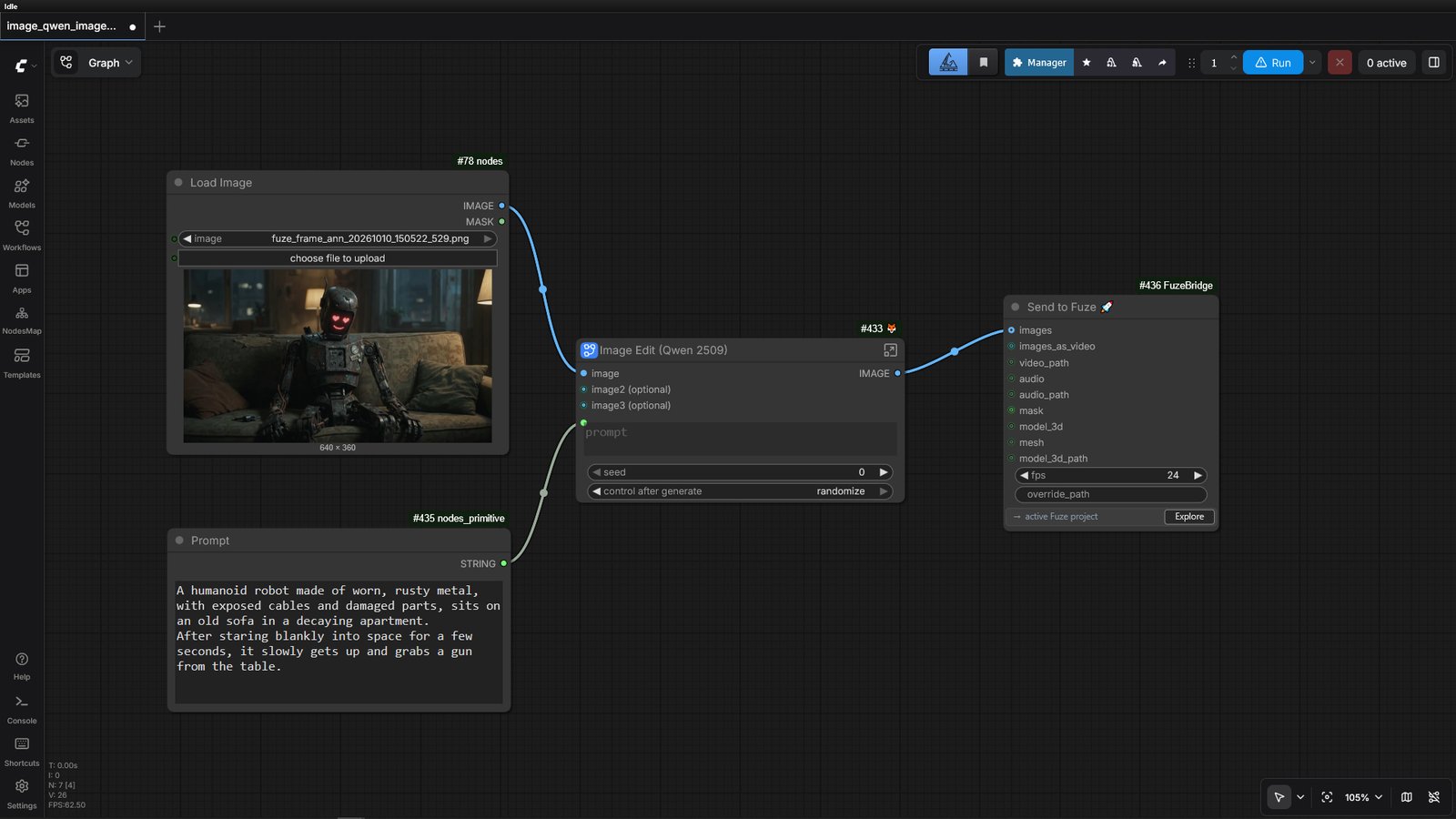
- Send to Fuze. Connect the node at the end of any ComfyUI graph. It accepts images, video, audio, masks and 3D models.Send to Fuze. Conecta el nodo al final de cualquier grafo de ComfyUI. Acepta imágenes, vídeo, audio, máscaras y modelos 3D.
- Lands in your project. The node shows the active Fuze project, and results appear in the Manager. Set the frame rate for video, or an override path to choose the destination.Llega a tu proyecto. El nodo muestra el proyecto activo de Fuze y los resultados aparecen en el Manager. Define los fps para vídeo, o una ruta alternativa para elegir el destino.
- Drag from Fuze to ComfyUI. Hold
Shiftand drag an image from the Manager onto the ComfyUI canvas to create a Load Image node. If the PNG was made in ComfyUI, ComfyUI loads the workflow stored inside it. HoldShift+Ctrl(Shift+Optionon macOS) to drag the image without that workflow and always get a Load Image node. ComfyUI copies the image into its own input folder.Arrastrar de Fuze a ComfyUI. ManténShifty arrastra una imagen del Manager al lienzo de ComfyUI para crear un nodo Load Image. Si el PNG se generó en ComfyUI, ComfyUI carga el workflow guardado dentro. ManténShift+Ctrl(Shift+Optionen macOS) para arrastrar la imagen sin ese workflow y obtener siempre un Load Image. ComfyUI copia la imagen a su propia carpeta input. - Load in Comfy. In the Metadata panel (ℹ) of a PNG generated in ComfyUI, the workflow appears as one readable line with its node count and a Load in Comfy button that opens it in a new ComfyUI tab. It needs ComfyUI open in your browser and the updated FuzeBridge nodes. Fuze looks for ComfyUI on the usual local addresses (port 8188, or 8000 in ComfyUI Desktop).Load in Comfy. En el panel Metadata (ℹ) de un PNG generado en ComfyUI, el workflow aparece en una línea legible con su número de nodos y un botón Load in Comfy que lo abre en una pestaña nueva de ComfyUI. Necesita ComfyUI abierto en el navegador y los nodos de FuzeBridge actualizados. Fuze busca ComfyUI en las direcciones locales habituales (puerto 8188, o 8000 en ComfyUI Desktop).
- Plans. Send to Fuze is available in every plan, Free included. Load in Comfy requires Indie or Studio.Planes. Send to Fuze está disponible en todos los planes, incluido Free. Load in Comfy requiere Indie o Studio.
Fuze2Comfy Studio
Run your own ComfyUI workflows from a Flow node, on the ComfyUI of your computer, and keep those workflows as assets. It works the other way round from FuzeBridge: FuzeBridge sends results from ComfyUI to Fuze, while Fuze2Comfy sends images and text from Fuze to ComfyUI.Ejecuta tus propios workflows de ComfyUI desde un nodo de Flow, en el ComfyUI de tu ordenador, y guárdalos como assets. Funciona al revés que FuzeBridge: FuzeBridge envía los resultados de ComfyUI a Fuze, mientras que Fuze2Comfy envía imágenes y texto de Fuze a ComfyUI.
Fuze2Comfy is a Studio feature. The ComfyUI node in Flow requires a Studio license.Fuze2Comfy es una función de la licencia Studio. El nodo ComfyUI de Flow requiere una licencia Studio.

- Choose a workflow. Add the ComfyUI node and choose a workflow exported from ComfyUI with Export (API), or pick one from Load from my library. That list is the folder
Documents/Fuze/flow/comfyUI, and Save a copy in my library (on by default) copies there every file you choose. The workflow is stored inside the node, so the Flow keeps working without the original file.Elige un workflow. Añade el nodo ComfyUI y elige un workflow exportado desde ComfyUI con Export (API), o escoge uno en Load from my library. Esa lista es la carpetaDocuments/Fuze/flow/comfyUI, y Save a copy in my library (activado por defecto) copia ahí cada fichero que eliges. El workflow se guarda dentro del nodo, así que el Flow sigue funcionando sin el fichero original. - Inputs and output. The node gets one image input per Load Image node of the workflow and one text input per prompt. A connected input wins over the text typed in the node, and a prompt called negative is listed below the other prompts. The workflow needs one Save Image or Save Video node, so the output is an image or a video.Entradas y salida. El nodo tiene una entrada de imagen por cada nodo Load Image del workflow y una entrada de texto por cada prompt. Una entrada conectada gana al texto escrito en el nodo, y un prompt llamado negative aparece debajo de los demás prompts. El workflow necesita un nodo Save Image o Save Video, así que la salida es una imagen o un vídeo.
- Settings in sight. The other settings of the workflow are in the Settings list, grouped by ComfyUI node. To keep a few on top, start the title of their node in ComfyUI with
[Fuze](for example[Fuze] Duration), export the workflow again and choose it in the node. You can also pin or unpin any setting with the pin icon next to it.Ajustes a la vista. El resto de ajustes del workflow están en la lista Settings, agrupados por nodo de ComfyUI. Para tener unos pocos arriba, empieza el título de su nodo en ComfyUI con[Fuze](por ejemplo[Fuze] Duration), exporta de nuevo el workflow y elígelo en el nodo. También puedes fijar o soltar cualquier ajuste con el icono de chincheta que tiene al lado. - Workflows as assets. Register the workflow
.jsonas an asset of your own type: in Register as Asset choose + Add type and create one, for examplecomfy. Assets of your own types have their own tab in the Assets page and appear in the Asset Loader of Flow.Workflows como assets. Registra el.jsondel workflow como un asset de un tipo propio: en Register as Asset elige + Add type y crea uno, por ejemplocomfy. Los assets de tipos propios tienen su propia pestaña en la página de Assets y aparecen en el Asset Loader de Flow. - Workflow input. Load that asset in Flow (it becomes an Asset node) and connect it to the Workflow input, the last one of the ComfyUI node. The workflow loads into the node as if you had chosen the file, with its inputs and settings. If you disconnect the Asset, the node empties again (a workflow you chose by hand stays). If the asset has several versions, pick the one you want in the version selector of the Asset node and the ComfyUI node loads that version: Fuze never changes version by itself. If the connected asset has no
.jsonfile, the node says so.Entrada Workflow. Carga ese asset en Flow (se convierte en un nodo Asset) y conéctalo a la entrada Workflow, la última del nodo ComfyUI. El workflow se carga en el nodo como si hubieras elegido el fichero, con sus entradas y ajustes. Si desconectas el Asset, el nodo se vacía de nuevo (un workflow que elegiste a mano se mantiene). Si el asset tiene varias versiones, elige la que quieras en el selector de versiones del nodo Asset y el nodo ComfyUI carga esa versión: Fuze nunca cambia de versión por sí solo. Si el asset conectado no tiene un fichero.json, el nodo lo indica. - Server. The node talks to the ComfyUI at the address shown in it (by default
http://127.0.0.1:8188). Tick Allow local network to use the private-network address of another computer (192.168.x.x,10.x.x.x,172.16-31.x.x). Internet addresses are never accepted.Servidor. El nodo habla con el ComfyUI de la dirección que muestra (por defectohttp://127.0.0.1:8188). Marca Allow local network para usar la dirección de red privada de otro ordenador (192.168.x.x,10.x.x.x,172.16-31.x.x). Las direcciones de internet nunca se aceptan.
Studio pipeline modeModo estudio (pipeline)
Launch Fuze from your studio launcher already configured: the artist works in the folder of their task, and everything shared by the project (costs, registered assets, settings) lives in a common folder.Lanza Fuze desde el lanzador del estudio ya configurado: el artista trabaja en la carpeta de su tarea, y todo lo que comparte el proyecto (costes, assets registrados, configuración) vive en una carpeta común.
What it isQué es
Fuze can be launched with a series of parameters to set the working path, the user, the API keys to use and other settings. This mode is designed to integrate Fuze into a studio pipeline.Fuze se puede lanzar con una serie de parámetros para establecer la ruta de trabajo, el usuario, las API keys que se deben usar y otros ajustes. Este modo está pensado para integrar Fuze en el pipeline de un estudio.
The task folder stays cleanLa carpeta de la tarea queda limpia
Only what belongs to the artist is written there: _workfiles, their saved workflows and edits, and little else.Solo se escribe lo que es del artista: _workfiles, sus workflows y edits guardados, y poco más.
Shared things in one placeLo común, en un solo sitio
Project settings, cost ledger, asset registry and reports are shared across all tasks.Configuración del proyecto, ledger de costes, registro de assets e informes se comparten entre todas las tareas.
Nothing to set up by handNada que configurar a mano
The user, the keys and the folders come from the launcher. The artist opens Fuze and works.El usuario, las claves y las carpetas vienen del lanzador. El artista abre Fuze y trabaja.
Studio pipeline mode is a feature of the Fuze Studio license.El modo estudio es una función de la licencia Fuze Studio.
How folders are splitCómo se reparten las carpetas
In pipeline mode, what Fuze saves is split across three places:Con el modo estudio, lo que Fuze guarda se reparte en tres sitios:
- _workfiles/Everything the artist generates and organizesTodo lo que genera y organiza el artista
- _workflows/Saved Flow workflowsWorkflows de Flow guardados
- _strip/Saved strips and Strip PDFsStrips guardados y PDF de Strip
- _editorial/Saved edits and FCPXML exportsEdits guardados y exportaciones FCPXML
- workspace.fuzeMarks it as a Fuze workspaceMarca de que es un workspace de Fuze
- _metadata.jsonData of the task itselfDatos propios de la tarea
- _trash/Trash, if something is deletedPapelera, si se borra algo
- _publish/Only if Publish is used (configurable)Solo si se usa Publish (configurable)
- project.jsonStages, statuses, members, modelsStages, statuses, miembros, modelos
- production_ledger.jsonCost of every generationCostes de todas las generaciones
- _assets/Asset registry with versionsRegistro de assets con sus versiones
- _reports/Cost reports (PDF)Informes de costes en PDF
- _customNodes/Project custom nodesCustom nodes del proyecto
- USER_WORKFLOW_PATHSaved workflowsWorkflows guardados
- USER_STRIPS_PATHSaved stripsStrips guardados
- USER_EDITS_PATHEditorial editsEdits de Editorial
- USER_CUSTOMNODES_PATHPersonal custom nodesCustom nodes personales
Each common folder can be sent elsewhere with its own key (for example, the ledger to one path and the assets to another). If you give neither COMMON_PATH nor the specific path, that item stays where it was until now, inside the workspace.Cada una de las carpetas comunes se puede mandar a otro sitio con su propia clave (por ejemplo, el ledger a una ruta y los assets a otra). Si no das COMMON_PATH ni la ruta concreta, esa cosa se queda donde estaba hasta ahora, dentro del workspace.
Quick startPuesta en marcha
- Prepare the folders.Prepara las carpetas. The common folder must exist and artists must be able to write to it (see Good to know). Fuze creates the task workspace if it does not exist.Tiene que existir la carpeta común y los artistas deben poder escribir en ella (ver Tenlo en cuenta). El Task Workspace lo crea Fuze si no existe.
- Choose how to pass the settings:Elige cómo pasar los ajustes: command-line parameters, a launch file (JSON), or both.parámetros sueltos, un fichero de lanzamiento (JSON), o los dos.
- Launch FuzeLanza Fuze from your launcher (Launching Fuze).desde tu lanzador (Cómo lanzar Fuze).
- Check itComprueba in Settings > Studio Pipeline that each folder is the one you expect (Checking it works).en Settings > Studio Pipeline que cada carpeta es la esperada (Comprobar que funciona).
Two ways to configure FuzeDos formas de configurar Fuze
The launcher tells Fuze what to use in one of two ways. Pick the one that suits you, or combine them.El lanzador le dice a Fuze qué usar de una de estas dos formas. Elige la que te convenga, o combínalas.
Command-line parametersParámetros sueltos
Pass the paths, the user and the labels straight on the command line when launching Fuze. No extra file. Ideal for a short .bat or script.Pasa las rutas, el usuario y los textos directamente en la línea de comandos al lanzar Fuze. Sin ningún fichero extra. Ideal para un .bat o script corto.
Launch file (JSON)Fichero de lanzamiento (JSON)
A text file with one key per setting, and Fuze is told where it is. It is the only way to pass API keys.Un fichero de texto con una clave por ajuste, y se le indica a Fuze dónde está. Es la única forma de pasar claves API.
Option 2Opción 2Neither is required on its own: use one, the other, or both. The settings are the same in both cases (see the settings reference).Ninguna es obligatoria por sí sola: usa una, la otra, o las dos. Los ajustes son los mismos en ambos casos (mira la referencia de ajustes).
What wins over whatQué manda sobre qué
Option 1: command-line parametersOpción 1: parámetros sueltos
Pass the settings straight on the command line when launching Fuze. No file needed, and handy to change a single value:Pasa los ajustes directamente en la línea de comandos al lanzar Fuze. No hace falta ningún fichero, y es cómodo para cambiar un solo valor:
Fuze --project-path "/jobs/fuze_ad/assets/character/pop/develop/ia/fuze/{user}" --common-path /jobs/fuze_ad/common/pipeline/tools/fuze --user session --project-name FuzeX --context "character / pop / develop"
Fuze --project-path=/jobs/fuze_ad/shots/sh_001/fuze COMMON_PATH=/jobs/fuze_ad/common/pipeline/tools/fuze USER=Peter- All the paths in the tables above work, plus
USER,ROLE,PROJECT_NAMEandCONTEXT. - Three ways to write it:
--key value,--key=valueorKEY=value. Dashes or underscores, upper or lower case (--project-pathis the same asPROJECT_PATH). - Relative paths are resolved from the folder Fuze was launched from.
- They can be used alone or together with the JSON. If a value is in both places, the parameter wins.
- A parameter without a value, or one Fuze does not know, is ignored.
- Valen todas las rutas de las tablas anteriores, además de
USER,ROLE,PROJECT_NAMEyCONTEXT. - Tres formas de escribirlo:
--clave valor,--clave=valoroCLAVE=valor. Con guiones o guiones bajos, en mayúsculas o minúsculas (--project-pathes lo mismo quePROJECT_PATH). - Las rutas relativas se calculan desde la carpeta desde la que se lanza Fuze.
- Se pueden usar solos o junto al JSON. Si un valor está en los dos sitios, gana el parámetro.
- Un parámetro sin valor, o que Fuze no conoce, se ignora.
The parameters of a program are visible to other users of the machine (for example in the task manager). That is why keys are only read from the JSON file.Los parámetros de un programa son visibles para otros usuarios de la máquina (por ejemplo en el administrador de tareas). Por eso las claves solo se leen del fichero JSON.
Option 2: launch file (JSON)Opción 2: fichero de lanzamiento (JSON)
Instead of (or together with) parameters, put the settings in a plain text file in JSON format, with one key per setting, and tell Fuze where it is. This is also the only way to give API keys. Example:En lugar de los parámetros (o junto a ellos), pon los ajustes en un fichero de texto en formato JSON, con una clave por ajuste, e indícale a Fuze dónde está. Es también la única forma de dar claves API. Ejemplo:
{
    "PROJECT_PATH":          "/jobs/fuze_ad/assets/character/pop/develop/ia/fuze/{user}",
    "COMMON_PATH":           "/jobs/fuze_ad/common/pipeline/tools/fuze",
    "PUBLISH_PATH":          "/jobs/fuze_ad/delivery/pop",
    "TEMPLATE_PATH":         "/jobs/fuze_ad/common/pipeline/tools/fuze/folder_template.json",

    "USER":                  "session",
    "ROLE":                  "editor",
    "PROJECT_NAME":          "FuzeX",
    "CONTEXT":               "character / pop / develop",

    "FAL_API":               "fal-key-here",
    "KIE_API":               "kie-key-here",
    "REPLICATE_API":         "replicate-key-here",

    "GCP_CREDENTIALS_PATH":  "/jobs/fuze_ad/common/pipeline/tools/fuze/service_account.json",
    "GCS_BUCKET_PUBLIC":     "fuzead-public",
    "GCS_BUCKET_PRIVATE":    "fuzead-private"
}
This is only an example. The file accepts every setting in the settings reference, and you only need to include the ones you use.Esto es solo un ejemplo. El fichero acepta todos los ajustes de la referencia de ajustes, y solo hace falta incluir los que uses.
File rules. Key names are not case sensitive. Relative paths are resolved from the folder that holds the JSON itself. ~ and environment variables are understood ($VAR on Linux and macOS, %VAR% or $VAR on Windows). An unknown key is ignored and a warning is left in the console. On Windows, write backslashes doubled ("Z:\\jobs\\fuze_ad") or use forward slashes ("Z:/jobs/fuze_ad").Normas del fichero. Los nombres de las claves no distinguen mayúsculas de minúsculas. Las rutas relativas se calculan desde la carpeta donde está el propio JSON. Se entienden ~ y las variables de entorno ($VAR en Linux y macOS, %VAR% o $VAR en Windows). Una clave desconocida se ignora y deja un aviso en la consola. En Windows, escribe las barras invertidas dobles ("Z:\\jobs\\fuze_ad") o usa barras normales ("Z:/jobs/fuze_ad").
Telling Fuze where the file isCómo indicarle a Fuze dónde está el fichero
Use either of these. If you give both, the first one wins:Usa cualquiera de estas. Si das las dos, gana la primera de la lista:
- The
--fuze-launch-config PATHparameter (also--fuze-launch-config=PATHorCONFIG_FILE=PATH).Parámetro--fuze-launch-config RUTA(también--fuze-launch-config=RUTAoCONFIG_FILE=RUTA). - The
FUZE_LAUNCH_CONFIGenvironment variable.Variable de entornoFUZE_LAUNCH_CONFIG.
Settings referenceReferencia de ajustes
These settings are the same for both methods. In the launch file they are JSON keys ("PROJECT_PATH": "..."); on the command line they are parameters (--project-path ...). API keys can only be given in the launch file.Estos ajustes son los mismos para los dos métodos. En el fichero de lanzamiento son claves JSON ("PROJECT_PATH": "..."); en la línea de comandos son parámetros (--project-path ...). Las claves API solo se pueden dar en el fichero de lanzamiento.
PathsRutas
| KeyClave | What it doesPara qué sirve | If not givenSi no se da |
|---|---|---|
PROJECT_PATH mainprincipal |
The task workspace, where the artist works. Fuze stays locked on this project: you cannot switch project or create another one from the interface.El Task Workspace, donde trabaja el artista. Fuze se queda fijo en este proyecto: no se puede cambiar de proyecto ni crear otro desde la interfaz. | Fuze is not locked on any project and the common folders are not applied. User, keys and user folders still are.Fuze no se bloquea en ningún proyecto, y las carpetas comunes no se aplican. Usuario, claves y carpetas de usuario sí. |
COMMON_PATH |
Common project folder. Default home of project.json, production_ledger.json, _assets, _reports and _customNodes.Carpeta común del proyecto. Casa por defecto de project.json, production_ledger.json, _assets, _reports y _customNodes. |
All of that stays inside the workspace, as usual.Todo eso se queda dentro del workspace, como siempre. |
PROJECT_CONFIG_PATH |
Folder that holds project.json.Carpeta donde está el project.json. | COMMON_PATH |
ASSETS_PATH |
Folder of the asset registry.Carpeta del registro de assets. | COMMON_PATH/_assets |
LEDGER_PATH |
Folder of production_ledger.json (costs).Carpeta de production_ledger.json (costes). | COMMON_PATH |
REPORTS_PATH |
Folder of the cost report PDFs.Carpeta de los informes de costes en PDF. | COMMON_PATH/_reports |
PROJECT_CUSTOMNODES_PATH |
Custom nodes shared by the project.Custom nodes compartidos por el proyecto. | COMMON_PATH/_customNodes |
TRASH_PATH |
Trash for deleted items.Papelera de los elementos borrados. | PROJECT_PATH/_trash |
PUBLISH_PATH |
Destination of Publish, for approved folders and for assets. Use a different folder per task. A destination picked by hand in the Publish dialog still wins.Destino de Publish, tanto para carpetas aprobadas como para assets. Conviene una carpeta distinta por tarea. Un destino elegido a mano en el diálogo de Publish sigue teniendo prioridad. | PROJECT_PATH/_publish |
TEMPLATE_PATH |
A JSON file with a folder structure to create in the workspace the first time it is created (see Folder template).Un fichero JSON con una estructura de carpetas que se crea en el workspace la primera vez que se crea (mira Plantilla de carpetas). | No templateSin plantilla |
USER_WORKFLOW_PATH |
Where Flow workflows are saved and loaded.Dónde se guardan y cargan los workflows de Flow. | PROJECT_PATH/_workflows |
USER_STRIPS_PATH |
Where strips are saved and loaded. Strip PDFs go by default to PROJECT_PATH/_strip/pdf.Dónde se guardan y cargan los strips. Los PDF de Strip van por defecto a PROJECT_PATH/_strip/pdf. | PROJECT_PATH/_strip/strips |
USER_EDITS_PATH |
Where Editorial edits are saved and loaded. FCPXML exports go by default to PROJECT_PATH/_editorial/xml.Dónde se guardan y cargan los edits de Editorial. Los XML (FCPXML) van por defecto a PROJECT_PATH/_editorial/xml. | PROJECT_PATH/_editorial/edits |
USER_CUSTOMNODES_PATH |
The user's personal custom nodes.Custom nodes personales del usuario. | Usual Fuze locationSitio habitual de Fuze |
The artist's files go inside their workspace. If you give none of USER_WORKFLOW_PATH, USER_STRIPS_PATH or USER_EDITS_PATH, Fuze saves workflows, strips and edits in the workspace itself, with the same structure it uses in the user folder and a leading _ (so the project tree does not show them, like every other internal Fuze folder): _workflows, _strip/strips and _editorial/edits. Exports that sit next to them (Strip PDF and Editorial XML) land in _strip/pdf and _editorial/xml. Each task keeps its work with it. If you give any of the three keys, that one wins. Personal custom nodes do not change: they stay in the usual place unless you use USER_CUSTOMNODES_PATH.Los ficheros del artista van dentro de su workspace. Si no indicas USER_WORKFLOW_PATH, USER_STRIPS_PATH ni USER_EDITS_PATH, Fuze guarda los workflows, strips y edits en el propio workspace, con la misma estructura que usa en su carpeta de usuario y un _ al inicio (así el árbol de proyectos no las muestra, como el resto de carpetas internas de Fuze): _workflows, _strip/strips y _editorial/edits. Los exportados que van junto a ellos (PDF de Strip y XML de Editorial) caen en _strip/pdf y _editorial/xml. Así, cada tarea guarda su trabajo con ella. Si indicas alguna de las tres claves, esa manda. Los custom nodes personales no cambian: siguen en el sitio habitual salvo que uses USER_CUSTOMNODES_PATH.
Folder templatePlantilla de carpetas
With TEMPLATE_PATH Fuze creates a folder structure inside the workspace (under _workfiles) only the first time the workspace is created. Opening the same task again never recreates it, so folders the artist renamed or deleted stay as they are, and nothing is duplicated. The file is a JSON list of folders, each one a name or an object with name and children. A template saved from My Templates also works: only its folders are applied. Names starting with _ are skipped (they are reserved for Fuze).Con TEMPLATE_PATH Fuze crea una estructura de carpetas dentro del workspace (bajo _workfiles) solo la primera vez que se crea el workspace. Abrir de nuevo la misma tarea nunca la recrea, así que las carpetas que el artista renombró o borró se quedan como están, y no se duplica nada. El fichero es una lista JSON de carpetas, cada una un nombre o un objeto con name y children. También vale una plantilla guardada desde My Templates: solo se aplican sus carpetas. Los nombres que empiezan por _ se omiten (están reservados para Fuze).
[
    { "name": "Refs", "children": ["Images", "Video"] },
    "Outputs",
    { "name": "Work", "children": ["WIP"] }
]
User, labels and keysUsuario, textos y claves
| KeyClave | What it doesPara qué sirve |
|---|---|
USER | The user's name. Just the name, no email. It replaces the identity saved in Fuze (Users and roles). With session (or @session), Fuze automatically uses the user logged in to the operating system (Windows, macOS or Linux). The artist types nothing.Nombre del usuario. Solo el nombre, sin correo. Sustituye a la identidad guardada en Fuze (Usuarios y roles).Si pones session (o @session), Fuze usa automáticamente el usuario con el que se ha iniciado sesión en Windows, macOS o Linux. El artista no tiene que escribir nada. |
ROLE | The user's role in the project: admin, editor or viewer. The launcher decides it, it is not stored in the project and no one becomes Admin on their own (see Users and roles). Without ROLE the user is an Editor, unless the common project.json lists them with another role.El rol del usuario en el proyecto: admin, editor o viewer. Lo decide el lanzador, no se guarda en el proyecto y nadie se convierte en Admin por su cuenta (mira Usuarios y roles). Sin ROLE el usuario es Editor, salvo que el project.json común lo liste con otro rol. |
PROJECT_NAMECONTEXT | Optional informational texts for the artist. PROJECT_NAME is the production name (FuzeX) and CONTEXT what they are working on (character / pop / develop). Fuze joins them with / and shows them in the title bar (Fuze · FuzeX / character / pop / develop, also in the taskbar). Only CONTEXT is used as the workspace name in the project tree, with the full path as a tooltip (the production name is already in the title). They may contain {user}. Fuze never deduces anything from the path: it only shows what you write. Up to 80 characters each.Textos informativos para el artista, opcionales. PROJECT_NAME es el nombre de la producción (FuzeX) y CONTEXT lo que está haciendo (character / pop / develop). Fuze los une con / y los muestra en la barra de título (Fuze · FuzeX / character / pop / develop, también en la barra de tareas). Solo el CONTEXT se usa como nombre del workspace en el árbol de proyectos, con la ruta completa al pasar el ratón (el nombre de la producción ya está arriba, en el título). Pueden llevar {user}. Fuze no deduce nada de la ruta: solo muestra lo que escribas. Hasta 80 caracteres cada uno. |
{user} | Not a key but a variable you can write inside any path. It is replaced by the user's name (USER, or the session user if there is no USER) and the folder is created automatically when Fuze opens. Example: "PROJECT_PATH": "X:/jobs/fuze_ad/assets/character/pop/develop/ia/fuze/{user}" with "USER": "session" opens the workspace .../fuze/rod for the user rod. Characters that are not valid in a folder name are replaced by _.No es una clave, sino una variable que puedes escribir dentro de cualquier ruta. Se sustituye por el nombre del usuario (el USER, o el usuario de la sesión si no hay USER) y la carpeta se crea sola al abrir Fuze. Ejemplo: "PROJECT_PATH": "X:/jobs/fuze_ad/assets/character/pop/develop/ia/fuze/{user}" con "USER": "session" abre el workspace .../fuze/rod para el usuario rod. Los caracteres que no valen en una carpeta se cambian por _. |
FAL_API | Fal.ai keyClave de Fal.ai |
KIE_API | Kie.ai keyClave de Kie.ai |
REPLICATE_API | Replicate tokenToken de Replicate |
GOOGLE_API | Google Cloud keyClave de Google Cloud |
MAGNIFIC_API | Magnific keyClave de Magnific |
CLOUDFLARE_API | Cloudflare tokenToken de Cloudflare |
GCS_BUCKET_PUBLICGCS_BUCKET_PRIVATE | Names of the Google Cloud Storage buckets (public and private).Nombres de los buckets de Google Cloud Storage (público y privado). |
GCP_CREDENTIALS_PATH | Path to the Google Cloud service account file (.json). It is read, never copied. It can also be given as a command-line parameter, because it is a path, not a secret. Relative paths start from the launch file.Ruta al fichero (.json) de la service account de Google Cloud. Se lee, nunca se copia. También se puede dar como parámetro de línea de comandos, porque es una ruta y no un secreto. Las rutas relativas parten del fichero de lanzamiento. |
GCP_CREDENTIALS | The same service account, written inside the launch file as a JSON object instead of a path. Launch file only. If both are given, this one wins.La misma service account, escrita dentro del fichero de lanzamiento como un objeto JSON en lugar de una ruta. Solo en el fichero de lanzamiento. Si das las dos, manda esta. |
R2_ACCESS_KEY_IDR2_SECRET_ACCESS_KEY | Cloudflare R2 access keys (the S3-compatible ones from R2 → Manage API Tokens).Claves de acceso de Cloudflare R2 (las compatibles con S3, de R2 → Manage API Tokens). |
R2_BUCKETR2_PUBLIC_URL | R2 bucket name and its public address (r2.dev or your own domain).Nombre del bucket de R2 y su dirección pública (r2.dev o tu propio dominio). |
CLOUDFLARE_ACCOUNT_ID | Cloudflare account ID. R2 needs it together with the keys above.ID de la cuenta de Cloudflare. R2 lo necesita junto con las claves anteriores. |
Launching FuzeCómo lanzar Fuze
Examples for each system, using parameters or the launch file (adjust the program path to where it is installed):Ejemplos para cada sistema, con parámetros sueltos o con el fichero de lanzamiento (ajusta la ruta del programa a donde lo tengas instalado):
Windows
:: with an environment variable:: con variable de entorno
set FUZE_LAUNCH_CONFIG=Z:\jobs\fuze_ad\fuze_launch.json
"C:\Program Files\Fuze\Fuze.exe"

:: with a parameter:: con parámetro
"C:\Program Files\Fuze\Fuze.exe" --fuze-launch-config Z:\jobs\fuze_ad\fuze_launch.json
Windows launcher (.bat)Lanzador de Windows (.bat)
@echo off
setlocal

set "FUZE_EXE=C:\Program Files\Fuze\Fuze.exe"
set "JOB=X:\jobs\fuze_ad"
set "PROJECT=FuzeX"
set "ASSET_TYPE=character"
set "ASSET=pop"
set "TASK=develop"

start "" "%FUZE_EXE%" --project-path "%JOB%\assets\%ASSET_TYPE%\%ASSET%\%TASK%\ia\fuze\{user}" --common-path "%JOB%\common\pipeline\tools\fuze" --user session --project-name "%PROJECT%" --context "%ASSET_TYPE% / %ASSET% / %TASK%"

endlocal
start ""launches Fuze and returns at once. The empty quotes are required, becausestarttakes the first quoted text as a window title.- Keep the command on one line, or leave no space after a trailing
^. - No quoted path may end with
\: Windows would swallow the closing quote. - To use a literal
%in a value, write it as%%.
start ""lanza Fuze y devuelve el control al momento. Las comillas vacías son obligatorias, porquestarttoma el primer texto entre comillas como título de ventana.- Deja el comando en una sola línea, o no pongas ningún espacio después de un
^final. - Ninguna ruta entre comillas debe terminar en
\: Windows se comería la comilla de cierre. - Para un
%literal en un valor, escríbelo como%%.
macOS
# run the program directly# ejecutando el programa directamente
/Applications/Fuze.app/Contents/MacOS/Fuze \
  --fuze-launch-config /Volumes/jobs/fuze_ad/fuze_launch.json

# with an environment variable# con variable de entorno
FUZE_LAUNCH_CONFIG=/Volumes/jobs/fuze_ad/fuze_launch.json \
  /Applications/Fuze.app/Contents/MacOS/Fuze
Linux
# with an environment variable# con variable de entorno
FUZE_LAUNCH_CONFIG=/jobs/fuze_ad/fuze_launch.json ./Fuze.AppImage

# with command-line parameters# con parámetros sueltos
./Fuze.AppImage --project-path "/jobs/fuze_ad/assets/character/pop/develop/ia/fuze/{user}" \
                --common-path /jobs/fuze_ad/common/pipeline/tools/fuze \
--user sessionOpening Fuze by double click or with open -a Fuze usually passes neither parameters nor environment variables. In your launcher use the executable path (Fuze.app/Contents/MacOS/Fuze).Abrir Fuze con doble clic o con open -a Fuze normalmente no pasa ni los parámetros ni las variables de entorno. En el lanzador usa la ruta del ejecutable (Fuze.app/Contents/MacOS/Fuze).
If Fuze is already open, a second launch may reuse that window and not read the new configuration: close Fuze before launching it for another task.Si Fuze ya estaba abierto, un segundo lanzamiento puede reutilizar esa ventana y no leer la nueva configuración: cierra Fuze antes de lanzarlo con otra tarea.
Fuze confirms the Studio license in the background right after opening. Meanwhile it shows "Verifying license..." and pipeline mode switches on as soon as it is confirmed.Fuze confirma la licencia Studio en segundo plano nada más abrir. Mientras tanto Fuze muestra "Verifying license..." y el modo estudio se activa en cuanto se confirma.
What the artist seesQué ve el artista
- Fuze opens straight in their workspace. The project selector does not let them change it: the New and Set buttons and the recent projects list do not appear.
- If the launcher gives
PROJECT_NAMEandCONTEXT, the artist sees the production and the task in the title bar, and the task in the project tree. - With the Editor role, the Models, Stages and Statuses tabs of Project Settings are locked and Members is read-only. Only an Admin can change them.
- There is no welcome window and no option to download the demo project.
- Their name in Fuze (generation metadata, avatars, roles) is the launcher's
USER. Settings > Identity does not allow changing it. - Keys show up as already configured in Settings > Generation APIs, without the artist having typed them.
- Saved workflows, strips and edits are written to and loaded from the folders the studio chose (by default inside the workspace).
- Everything registered as an asset, costs and reports go to the common folder and are seen by everyone working on the project.
- Settings gets a read-only Studio Pipeline section that shows where each path comes from.
- Fuze abre directamente en su workspace. El selector de proyecto no deja cambiarlo: los botones New, Set y la lista de proyectos recientes no aparecen.
- Si el lanzador indica
PROJECT_NAMEyCONTEXT, el artista ve en la barra de título la producción y la tarea en que trabaja, y en el árbol de proyectos la tarea. - Con el rol Editor, las pestañas Models, Stages y Statuses de Project Settings están bloqueadas y Members es de solo lectura. Solo un Admin puede cambiarlas.
- No sale la ventana de bienvenida ni la opción de descargar el proyecto demo.
- Su nombre en Fuze (metadatos de las generaciones, avatares, roles) es el
USERdel lanzador. Settings > Identity no permite cambiarlo. - Las claves aparecen como ya configuradas en Settings > Generation APIs, sin que el artista las haya escrito.
- Los workflows, strips y edits guardados se escriben y se cargan en las carpetas que eligió el estudio (por defecto, dentro del workspace).
- Todo lo registrado como asset, los costes y los informes van a la carpeta común y los ven todos los que trabajan en el proyecto.
- En Settings aparece la sección Studio Pipeline, de solo lectura, que muestra de dónde sale cada ruta.
Users and rolesUsuarios y roles
In pipeline mode the user is identified by their name (the launcher's USER), not by email. The project has three roles: Admin, Editor and Viewer.En el modo estudio el usuario se identifica por su nombre (el USER del lanzador), no por el correo. El proyecto tiene tres roles: Admin, Editor y Viewer.
Setting the role from the launcherIndicar el rol desde el lanzador
Pass ROLE (admin, editor or viewer) next to USER. Your pipeline already knows who is a supervisor and who is an artist, so the role does not depend on who opens the project first.Pasa ROLE (admin, editor o viewer) junto a USER. Tu pipeline ya sabe quién es supervisor y quién es artista, así que el rol no depende de quién abra primero el proyecto.
| Role | What it can doQué puede hacer |
|---|---|
admin | Everything an Editor can do, plus Project Settings: Models, Stages, Statuses and Members.Todo lo que hace un Editor, más Project Settings: Models, Stages, Statuses y Members. |
editor | Generate, organize, rename, move and delete. Models, Stages, Statuses and Members are locked.Generar, organizar, renombrar, mover y borrar. Models, Stages, Statuses y Members quedan bloqueados. |
viewer | View, approve or omit and leave notes. Nothing can be changed.Ver, aprobar u omitir y dejar notas. No se puede cambiar nada. |
- With
ROLE: the launcher decides. The role is not saved in the project and it wins over the member list. - Without
ROLE: the user is an Editor, unless the commonproject.jsonlists them with another role (see below). Nobody becomes Admin implicitly: saving Project Settings does not turn the person saving into an Admin, as it does in regular Fuze. - An Admin is needed: launch supervisors with
ROLE=admin, or list them as admins in theproject.json. Otherwise nobody can change Models, Stages, Statuses or Members.
- Con
ROLE: manda el lanzador. El rol no se guarda en el proyecto y gana a la lista de miembros. - Sin
ROLE: el usuario es Editor, salvo que elproject.jsoncomún lo liste con otro rol (mira más abajo). Nadie se convierte en Admin de forma implícita: guardar Project Settings no convierte en Admin a quien guarda, como ocurre en el Fuze normal. - Hace falta un Admin: lanza a los supervisores con
ROLE=admin, o ponlos como admin en elproject.json. Si no, nadie podrá cambiar Models, Stages, Statuses ni Members.
Restricting modelsRestringir modelos
The studio decides which provider is available by giving the API key, and an Admin decides which of its models can be used: in Project Settings > Models the Admin turns off the ones that must not be used (for example one specific video model). That choice is saved in the common project.json, so every artist working on the project gets it and, with the Editor role, cannot change it.El estudio decide qué proveedor está disponible al dar la clave API, y un Admin decide cuáles de sus modelos se pueden usar: en Project Settings > Models el Admin desactiva los que no deben usarse (por ejemplo un modelo de vídeo concreto). Esa elección se guarda en el project.json común, así que todos los artistas del proyecto la reciben y, con el rol Editor, no pueden cambiarla.
Fuze does not verify identities. If an artist can write to the common project.json file, they could edit it by hand. For a hard lock, give artists read-only access to that file's folder.Fuze no verifica identidades. Si un artista puede escribir en el fichero project.json común, podría editarlo a mano. Para un bloqueo real, da a los artistas acceso de solo lectura a la carpeta de ese fichero.
Member list in project.json (optional)Lista de miembros en project.json (opcional)
Instead of ROLE, roles can be written in the common project.json, from Project Settings > Members or by hand. A member can be written in two ways:En lugar de ROLE, los roles se pueden escribir en el project.json común, desde Project Settings > Members o a mano. Un miembro se puede escribir de dos formas:
{
  "visibility": "private",
  "members": [
    { "email": "peter",  "role": "admin"  },   // the name, lowercase, in the email field// el nombre, en minúsculas, en el campo email
    { "name":  "Laura",  "role": "editor" },   // or in a name field, case does not matter// o en un campo name, da igual mayúsculas
    { "name":  "Marcos", "role": "viewer" }
  ]
}- Private project: anyone not on the list has no access.
- Public project with a list: anyone not on the list works as Editor.
- No list: everyone is an Editor, as in regular Fuze.
- In pipeline mode Fuze never adds anyone to the common
project.jsonon its own. An Admin adds people in Members.
- Proyecto privado: quien no esté en la lista no tiene acceso.
- Proyecto público con lista: quien no esté en la lista trabaja como Editor.
- Sin lista: todos son Editores, como en Fuze normal.
- En el modo estudio, Fuze no añade por su cuenta a nadie al
project.jsoncomún. Quien quiera dar de alta a alguien lo hace un Admin en Members.
API keysClaves API
- Keys in the JSON are used in memory only while Fuze is open. They are never written to the artist's machine.
- The artist does not need to see or know the keys. In Settings they appear as configured but are not displayed.
- If an artist saves another key by hand in Settings, it is stored separately as usual, but for the session the launcher's key wins.
- Keys are never passed as parameters, only through the file.
- Las claves del JSON se usan solo en memoria mientras Fuze está abierto. Nunca se escriben en el equipo del artista.
- El artista no necesita ver ni conocer las claves. En Settings aparecen como configuradas pero no se muestran.
- Si un artista guarda otra clave a mano en Settings, se guarda aparte como siempre, pero mientras dure la sesión manda la del lanzador.
- Las claves no se pasan nunca por parámetro, solo por fichero.
Cloud storage (Google Cloud and Cloudflare R2)Cloud storage (Google Cloud y Cloudflare R2)
- Google Cloud: give the service account with
GCP_CREDENTIALS_PATH(a path to the.jsonfile) or paste it as an object inGCP_CREDENTIALS, and the bucket names withGCS_BUCKET_PUBLICandGCS_BUCKET_PRIVATE. - Cloudflare R2:
R2_ACCESS_KEY_ID,R2_SECRET_ACCESS_KEY,R2_BUCKET,R2_PUBLIC_URLandCLOUDFLARE_ACCOUNT_ID. - Like the API keys, everything is used in memory only. The service account is never copied to Fuze's own credentials file on the artist's machine.
- In Settings → Cloud Storage the values appear as configured and marked Set by the launcher, with no Remove button. The artist cannot replace or delete them.
- If the service account file is missing or is not a valid key, Fuze says so in Settings → Studio Pipeline and in the console, and works as if none had been given.
- Only the path of the service account can go on the command line. Its content, the keys and the bucket names are read from the launch file.
- Google Cloud: la service account se da con
GCP_CREDENTIALS_PATH(la ruta al fichero.json) o pegada como objeto enGCP_CREDENTIALS, y los nombres de los buckets conGCS_BUCKET_PUBLICyGCS_BUCKET_PRIVATE. - Cloudflare R2:
R2_ACCESS_KEY_ID,R2_SECRET_ACCESS_KEY,R2_BUCKET,R2_PUBLIC_URLyCLOUDFLARE_ACCOUNT_ID. - Igual que las claves API, todo se usa solo en memoria. La service account nunca se copia al fichero de credenciales propio de Fuze en el equipo del artista.
- En Settings → Cloud Storage los valores aparecen como configurados y marcados Set by the launcher, sin botón Remove. El artista no puede cambiarlos ni borrarlos.
- Si el fichero de la service account no existe o no es una clave válida, Fuze lo indica en Settings → Studio Pipeline y en la consola, y trabaja como si no se hubiera dado ninguna.
- En la línea de comandos solo puede ir la ruta de la service account. Su contenido, las claves y los nombres de bucket se leen del fichero de lanzamiento.
Anyone who can read the file can read the keys (and the service account file, if you use one, is just as sensitive). Store it where only the right users can reach it (on Linux and macOS, for example chmod 600, or 640 with the right group), or have the launcher generate it only at the moment Fuze opens.Quien pueda leer el fichero, puede leer las claves (y el fichero de la service account, si usas uno, es igual de sensible). Guárdalo en un sitio al que solo accedan los usuarios que deben (en Linux y macOS, por ejemplo chmod 600, o 640 con el grupo adecuado), o hazlo generar al lanzador solo en el momento de abrir Fuze.
Publish, trash and reportsPublish, papelera e informes
Publish
By default Publish copies approved files to PROJECT_PATH/_publish. With PUBLISH_PATH they go to the folder you give. Use a different folder per task (for example .../delivery/pop): files are placed by their path inside the workspace, and if two tasks share a folder they could end up with the same file name. Asset copies go to an _assets subfolder inside that path. Whoever publishes can pick another destination by hand in the Publish dialog, and that choice wins.Por defecto Publish copia los ficheros aprobados a PROJECT_PATH/_publish. Con PUBLISH_PATH van a la carpeta que indiques. Usa una carpeta distinta por tarea (por ejemplo .../delivery/pop): los ficheros se colocan según su ruta dentro del workspace, y si dos tareas comparten carpeta podrían coincidir en un mismo nombre. Las copias de assets van a una subcarpeta _assets dentro de esa ruta. Quien publique puede elegir otro destino a mano en el diálogo de Publish, y esa elección tiene prioridad.
TrashPapelera
Deleted items go to PROJECT_PATH/_trash, or to TRASH_PATH if you set it, and are kept for Fuze's usual time before being removed.Lo que se borra va a PROJECT_PATH/_trash, o a TRASH_PATH si lo indicas, y se conserva el tiempo habitual de Fuze antes de eliminarse.
Costs and reportsCostes e informes
The cost ledger is single for the whole project: what each artist generates is added to production_ledger.json in the common folder, and PDF reports are created in the common reports folder. Costs of all tasks are seen together.El ledger de costes es único para todo el proyecto: lo que genera cada artista se suma en production_ledger.json de la carpeta común, y los informes en PDF se crean en la carpeta de informes común. Así los costes de todas las tareas se ven juntos.
Checking it worksComprobar que funciona
Open Settings > Studio Pipeline. You will see the user and one card per folder, with its path and, on the right, where it comes from: the JSON key that decides it (PROJECT_PATH, COMMON_PATH...), the (command line) mark if it came from a parameter, or DEFAULT if it uses the usual place.Abre Settings > Studio Pipeline. Verás el usuario y una tarjeta por cada carpeta, con su ruta y, a la derecha, de dónde sale: la clave del JSON que la decide (PROJECT_PATH, COMMON_PATH…), la marca (command line) si vino de un parámetro, o DEFAULT si usa el sitio de siempre.
That section only appears when Fuze was launched with a file or parameters. Depending on the case it shows:Esa sección solo aparece cuando Fuze se lanzó con algún fichero o parámetro. Según el caso muestra:
| What you seeLo que ves | What it meansQué significa |
|---|---|
| User and folder listUsuario y lista de carpetas | Pipeline mode is active.El modo estudio está activo. |
| Launch configuration error with a messagecon un mensaje | The file could not be read (missing, not valid JSON...). Fuze works in normal mode until it is fixed.El fichero no se pudo leer (no existe, no es un JSON válido…). Fuze trabaja en modo normal hasta que se corrija. |
| Launch configuration not applied | A configuration was given but the active license is not Studio.Se dio una configuración pero la licencia activa no es Studio. |
Project Settings > Info also shows the path of the shared project.json.Además, en Project Settings > Info aparece la ruta del project.json compartido.
Fuze also writes lines prefixed with [Fuze] to its console at startup (file loaded, unknown keys ignored, parameters read). They are useful for debugging from the launcher.Fuze también escribe líneas con el prefijo [Fuze] en su consola al arrancar (fichero cargado, claves desconocidas ignoradas, parámetros leídos). Son útiles para depurar desde el lanzador.
TroubleshootingProblemas frecuentes
Fuze opens as usual and there is no Studio Pipeline sectionFuze se abre como siempre y no hay sección Studio Pipeline
Fuze did not receive the file or the parameters. Check that the environment variable is defined in the same process that launches Fuze, or that the parameter arrives (on macOS run the executable directly, see Launching Fuze). If Fuze was already open, close it first.Fuze no ha recibido el fichero ni los parámetros. Revisa que la variable de entorno esté definida en el mismo proceso que lanza Fuze, o que el parámetro llegue (en macOS, usa el ejecutable directamente, ver Cómo lanzar Fuze). Si Fuze ya estaba abierto, ciérralo antes.
"Launch configuration error" appearsAparece "Launch configuration error"
Read the message: it says which path it tried to read. Typical causes: a mistyped path, the file is not reachable from the machine, or the JSON has a syntax error (an extra comma, missing quotes, backslashes not doubled on Windows).Lee el mensaje: dice qué ruta intentó leer. Causas típicas: ruta mal escrita, el fichero no es accesible desde el equipo, o el JSON tiene un error de sintaxis (una coma de más, comillas que faltan, barras invertidas sin duplicar en Windows).
"Launch configuration not applied" appearsAparece "Launch configuration not applied"
The active license is not Studio. Check Settings > License. With Indie or Free pipeline mode is disabled on purpose.La licencia activa no es Studio. Revisa Settings > License. Con Indie o Free el modo estudio queda desactivado a propósito.
A folder is not the one I expectedUna carpeta no es la que esperaba
Look at its card in Settings > Studio Pipeline. If it says DEFAULT, neither that key nor COMMON_PATH was given. If it says (command line), a parameter is overriding the JSON. Remember that a specific folder key (for example LEDGER_PATH) wins over COMMON_PATH.Mira su tarjeta en Settings > Studio Pipeline. Si pone DEFAULT, no se dio esa clave ni COMMON_PATH. Si pone (command line), un parámetro está pisando el JSON. Recuerda que una clave de carpeta concreta (por ejemplo LEDGER_PATH) manda sobre COMMON_PATH.
Models, Stages or Statuses are lockedModels, Stages o Statuses aparecen bloqueados
Those tabs are only editable by an Admin. Launch that user with ROLE=admin. Settings > Studio Pipeline shows the role Fuze received.Esas pestañas solo las edita un Admin. Lanza a ese usuario con ROLE=admin. En Settings > Studio Pipeline puedes ver el rol que ha recibido Fuze.
The folder template was not appliedLa plantilla de carpetas no se ha aplicado
It is applied only the first time the workspace is created. If the task folder already existed, Fuze leaves it as it is. Also check the path of TEMPLATE_PATH and that the file is valid JSON: a problem is reported in the console with the [Fuze] prefix.Solo se aplica la primera vez que se crea el workspace. Si la carpeta de la tarea ya existía, Fuze la deja como está. Revisa también la ruta de TEMPLATE_PATH y que el fichero sea un JSON válido: cualquier problema se indica en la consola con el prefijo [Fuze].
Saving, registering an asset or creating a report failsDa error al guardar, registrar un asset o generar un informe
The user probably has no write permission on the common folder. Fuze needs to write to project.json, production_ledger.json, _assets and _reports. Give artists write permission, or point those paths to folders where they can write.Probablemente el usuario no tiene permiso de escritura en la carpeta común. Fuze necesita escribir en project.json, production_ledger.json, _assets y _reports. Da permisos de escritura a los artistas, o apunta esas rutas a carpetas donde puedan escribir.
The launcher's keys are not usedLas claves del lanzador no se usan
Check the key name (FAL_API, not FAL_KEY) and that you did not pass it as a command-line parameter, where keys are not accepted. If the license was still being checked, wait a few seconds after startup.Comprueba el nombre de la clave (FAL_API, no FAL_KEY) y que no la hayas puesto como parámetro de línea de comandos, donde no se aceptan. Si la licencia aún se estaba comprobando, espera unos segundos tras arrancar.
Paths in the JSON do not resolve on LinuxLas rutas del JSON no se resuelven bien en Linux
On Linux paths are case sensitive: /Jobs is not /jobs. JSON key names are not.En Linux las rutas distinguen mayúsculas y minúsculas: /Jobs no es /jobs. Las claves del JSON sí son indiferentes.
Good to knowTenlo en cuenta
- Write permissions. Artists need to write to the common folder (see above).
- One shared
project.json. If two people save Project Settings at the same time, the last one to save wins. The cost ledger is protected against simultaneous writes. - One Fuze per machine. Fuze uses a fixed port (7845), so it cannot run twice on the same machine with different configurations. On a workstation shared by several artists at the same time it would not work.
- Folder notes and colors. They are saved with paths relative to the workspace inside the common
project.json, so with several tasks they can get mixed. The rest is not affected. - Fuze system files. Even when you use studio paths, Fuze may still create its usual program data folder on the user's machine, apart from the task.
- Old custom nodes. With
USER_CUSTOMNODES_PATH, nodes the user had saved on their machine before are not migrated to the studio folder. - Windows, macOS and Linux. Pipeline mode does not depend on the system, but the way to launch Fuze and the paths change (see Launching Fuze).
- Permisos de escritura. Los artistas necesitan escribir en la carpeta común (ver arriba).
- Un
project.jsoncompartido. Si dos personas guardan Project Settings a la vez, el último en guardar gana. El ledger de costes sí está protegido contra escrituras simultáneas. - Un Fuze por equipo. Fuze usa un puerto fijo (7845), así que no se puede ejecutar dos veces a la vez en el mismo equipo con configuraciones distintas. En una estación compartida por varios artistas al mismo tiempo no funcionaría.
- Notas y colores de carpetas. Se guardan con rutas relativas al workspace dentro del
project.jsoncomún, así que con varias tareas pueden mezclarse. No afecta al resto. - Ficheros de sistema de Fuze. Aunque trabajes con rutas del estudio, Fuze puede seguir creando su carpeta habitual de datos del programa en el equipo del usuario, aparte de la tarea.
- Custom nodes antiguos. Con
USER_CUSTOMNODES_PATHno se migran a la carpeta del estudio los nodos que ese usuario tuviera guardados antes en su equipo. - Windows, macOS y Linux. El modo estudio no depende del sistema, pero el modo de lanzar Fuze y las rutas cambian (ver Cómo lanzar Fuze).